How To Setup The WIP List
The Work In Progress (WIP) List is the scheduling engine for
all of your operators in different job functions to organize and
attend to their workloads where the same pertains to requiring
particular debtor accounts (or client files - see TIP below) on
a multi-categorized and diarized basis.
WIP settings and preferences can be input for operators
individually or set as a global profile for all WIP Operators.
Being flexible, the software also allows you to maintain your
own company's preferred default settings for WIP users AND override
these settings only for individual Operator IDs. This latter is
accomplished by saving a different parameter profile for specific
Operator IDs after the system-wide defaults are determined.
These parameters and preferences are governed by a series of Option
and Filter settings. At any time, you have the ability to modify
these settings as your needs change or circumstances require.
 If you have Administration / Clerical / Inside
Sales staff who would benefit from being
able to have a WIP list of Clients, please
contact our office at 250-391-0466, option 3
for Administration to inquire about licensing our
Client Management Module.
If you have Administration / Clerical / Inside
Sales staff who would benefit from being
able to have a WIP list of Clients, please
contact our office at 250-391-0466, option 3
for Administration to inquire about licensing our
Client Management Module.
Each Operator's WIP list is an aggregate of the Contact
Events that have been designated to that Operator's user ID. Which
event Types, work scheduled Due Dates, urgency Priority ascribed etc.
that are presented in the list are determined by which settings
queried the Contact subfile of the system AND what filter and
sub-sorting the user requested ad hoc on the Work In Progress window.
The flexibility of the software allows you to bring an EVENT into
a user's work to be done without the actual account having to be
transferred to a different queue. This by itself saves tremendous
amounts of time as accounts are not being misplaced and forgotten
about on managerial / administrative desks, being the foremost
reasons percentages of inventory can go unworked or payments credited
to incorrect user IDs.
Examples of circumstances where the assigned collector may not be
the Collector ID on a Contact Event are tasks specific items such as:
Manager Review, collector request for Manager call, Preset Audit Review,
Clerical Request (special mailing/document/request to client/close file),
Legal Action Initialize, Paralegal to take next step, etc.
Work In Progress
If you are a User Level 50 (Senior Collector) or 60 (Junior
Collector), you will be navigated directly to the WIP List
upon login. Data Entry/Administration/Management user levels have
a Main Menu landing screen upon login.
To access the WIP list, click the Work In Progress button
on the left side of the screen.
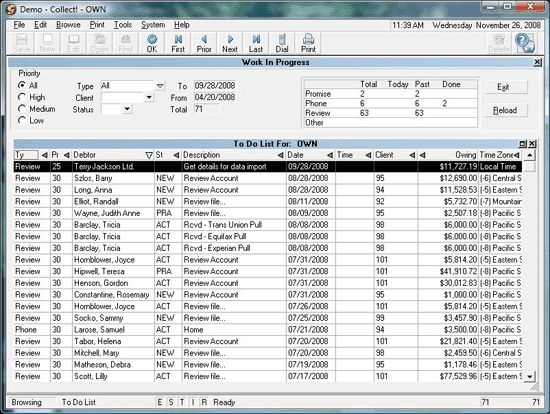
Work In Progress
The Work In Progress screen has a variety of methods an Operator
can use to organize and/or sub-WIP their accounts utilizing the
click or pick Filters and insertable columns which have their own
ascending/descending sorting capabilities. These filters and fields
may be used separately / individually and in combination to create a
variety of very finely tuned sub-WIPs. There are additional settings
in The Reload Work In Progress List, WIP Reload Filters and WIP Options
that can be used to further refine or expand parameters of interest in
the main WIP screen.
Depending on Operator Level, some fields and options will be
greyed out (Read Only) and not accessible. For example,
Junior Collector Level 60 will not be able to load anyone
else's WIP list but their own. This user level also does not
have access to the radio button/drop-down arrow filters on the
Main WIP screen but IS able to sort Ascending/Descending on
WIP columns that present with sort triangles on the right side
of the column header.
For versions CV11.6.2.1 and higher, the following list additional
fields were added as insertable to the WIP list:
- Debtor File Number
- Listed Date
- Client Name
- Operator ID
- Legal
- User 1
- User 2
- Date 1
- Date 2
- Summary
- Home Phone
- Home Phone Extension
- Work Phone
- Work Phone Extension
- Cell Phone
- Cell Phone Extension
- Other Phone
- Other Phone Extension
- Days since last payment
The reason many of the fields above were chosen is because these are
the most likely to be repurposed by Collect! end-users and the most
requested for accessibility within a WIP view as a result of the
important data repurposed fields now contain.
Days since last payment is an entirely NEW field and
an especially powerful piece of information: it identifies at glance
your dropped payers as well as pointedly identifies accounts which may
be due for a closure review on the basis of how much time has passed
since any financial activity.

Customize Your WIP List Display
You have the ability to add, remove and rearrange your WIP List
Display. Organize your WIP columns in the order of preference,
remove those columns you don't need, or add in some that are
available in this view but that you don't currently have visible.
All of these are functions each user can do for themselves. Once
you've changed your WIP display, it will remain that way until you
change it again.
To customize your list view:
- Immediately below the sub-Title bar that reads " To Do List
For: USERID" are the column headers of the fields you currently
have showing in your WIP List. Right click on the column header
that is positioned to the left of where you want to insert a new
field and Right click. You get a popup which offers you the
choices to " Edit", "Move", "Insert Field", "Remove Field", and
"Restore Default".
- Use your arrow key to move down to Insert Field and click to
select.
- A list of all the fields currently available to be inserted
will pop up.
- Use your arrow key to navigate to the field you wish to insert
and click on it. The field of interest will now be inserted and
positioned to the right of the column you were initially positioned
beside when you right clicked.
- If it isn't where you want it after all, drag and drop by
clicking into the column header. You can also adjust column
width by mouse hovering over the vertical dividing boundaries
until you see the bidirectional arrow present itself.
- To Remove a field or Restore Defaults, Right click on a
field header record again to raise the popup where the options
are again available.
- If you do not see a field in your list of those you can
Insert, and believe it should be there, return to your WIP List
first try using your "->" Right Arrow key to see if you have more
fields out to the right of the screen that aren't visible. If not,
if you have no hidden columns and still do not see the field name
that you are looking for, it is concluded then that the field of
interest is not currently available to be added into the WIP
display. Not all fields are accessible for to be added at this time./li>
For Administrative and Mangerial User Levels, all Browse
List views can be similarly modified for individual
preference and need. Different screens have different
field availability; what is displayed is what is
currently available. This includes all main Browse
lists and subfile Tab browse list, including those
in the Client Tabs.
Reload Work In Progress List
This area enables you to filter contacts to load by Date,
Time, Operator or Client. You can also access WIP Filters
and WIP Options from the Reload Work In Progress List.

Reload Work In Progress List
You can select settings in this screen that will be applied
as WIP defaults for all users or saved for a specific Operator
ID. The shipping default is that the WIP will load Promise, Review,
Phone and Other contacts automatically for the current Operator ID.
Other types of contacts are not displayed usually, but can loaded ad hoc
as needed via WIP Filters.
WIP Filters And Reload Filters
The WIP Filters screen may be accessed two ways:
- Via the menu path "System\Preferences\Plan and
Reference Tables\ WIP Options", then click the WIP Filters
button in the lower right of the screen
- From the Work In Progress window, click the
Reload button followed by the WIP Filters button.
The Filters window is used to decision which contacts to load.
It can also be used to determine Maximum numbers of Types that
the WIP may be built with. The maximums are useful when a desk
becomes too big or badly backlogged, making it difficult to
expose the money files and callable accounts. This window is
also where a System Administrator would have defined the parameters
for Look Ahead Days and Promise Grace Days.
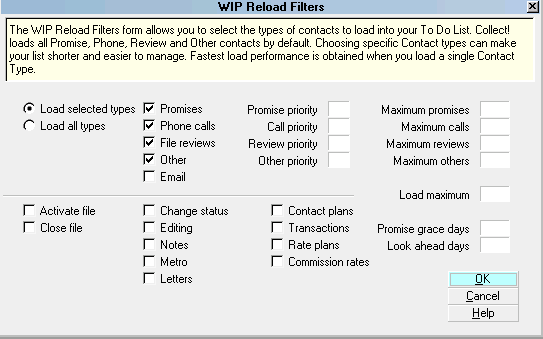
WIP Reload Filters
The Reload Work In Progress List Filters control
the From/To dates of the events being loaded: today and past,
today only, all dates or a specific date range. It is also
possible to load calling hours that you wish to focus on in the
debtor local time by using a specified From/To Time range.
Management can view multiple WIP lists by Reloading and selecting
a different Operator.
This window provides the button navigation to the WIP Filters screen.
A utility process in WIP Filters that simplifies queue reorganizations
is the Load Spreading function. This allows you to redistribute next
work dates that may be all priors/too many on a specific date and
redirect them to forward dates in an evenly distributed manner of
your choosing.
This same screen is where the software switch for Grace Days is
located if your site wishes to set a default of how many days from
a Promise Due date will be allowed to elapse before a Promise is
considered Broken by Promise automations. Leaving this field
blank is equivalent to No Grace Days.
You may input a From/To Time in the Debtor's Timezone
that will keep your collectors restricted to legal calling hours.
The time in the debtor's locale is always displayed in the extreme
right corner of the "Debtor" window Title Bar. This is the most
certain and secure of methods to ensure legal calling hour compliance.
The WIP List will not present an account that is outside the defined
hours.
A less controlling/more Alerting methodology to proactively prevent
outside hour calling would be utilization of control file snippets to
either cause phone number fields to change color or a Warning popup
window to be presented to the user if they open the account outside
that debtor's area calling times. See "Timezone Alerts" in the Help
pages for an example or contact Technical Services to explore your
custom options.
WIP Options
Settings in the WIP Options control the behavior of the WIP list
as accounts are displayed and worked.
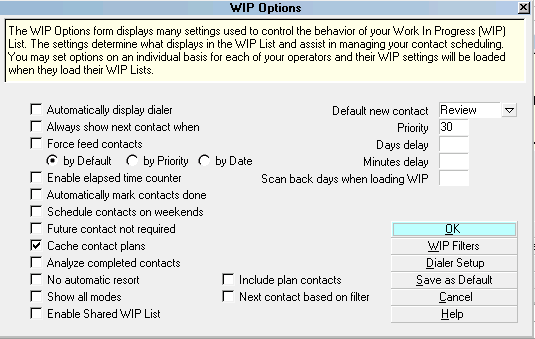
WIP Options
For detailed descriptions of each separate setting available in
the WIP Options window, press F1 on each field or switch option.
Setting Up Operators
Operator Type and User Level control what portions of the
system a user will be able to access and what permissions
they will have in those areas: Full Access, No Delete,
Read Only, No Access. Selecting "Collector" as the Operator
Type will bring the user directly to their WIP List as soon as
they login. Selecting "System" as the Operator Type will navigate
this user to the Main Menu when they login. From this screen they
may access the Quick Search fields but they are not permitted into
the rest of the button or drop-down menu options.
See the Help page called " Access Rights - Default
Settings" to view the shipping default access
rights and standard User Levels you receive
with Collect!.
See User Level topics and related links for more detailed
coverage on customizing or creating new Operator Levels.
Setting Up Debtors
Each Debtor must have an Operator assigned to it BEFORE you
begin creating any Contact Events that are to appear in
a WIP list. The Contact picks up the Operator ID from the
debtor file and inserts it into the "Collector" ID in the
Contact popup screen as a function of the contact event
creation.
There are a variety of methods of getting an Operator ID
into the debtor accounts:
- Manually, as you data enter your accounts.
- Batch Process to "Assign accounts to operators".
- Batch Process to " Run contact plans" that assign accounts as per your own
distribution model utilizing conditional logic.
Setting Up Contacts
Each item displayed in the WIP List is a Contact event
scheduled for a particular Debtor. Contacts maybe created
manually when you are data entering a Debtor manually or they may be
created by running a contact plan against a tagged list of accounts to
insert the same event(s) into multiple accounts in a batch process.
Contact events have a particular Type, a Due Date, a Description
and a Collector ID they are assigned to. This does not necessarily
have to the desk collector working the account. If there is need to
bring the account to the attention of another user in the company,
the "Collector" code would be replaced with the ID of the user you
want to see the account for the intended purpose on the designated
date. The Due Date determines when the Event is to appear in the
that person's WIP List. The Description enables the operator
to tell at a glance what the item is about; it is also a sortable
field in the WIP display.
Setting WIP Options
There are a variety of configurable options to choose from on
the WIP Options screen. These play a very important part in the
functioning of the WIP List. You can access WIP Options to set
company-wide defaults via "System\Preferences\Plans and Reference
Tables\WIP Options" or click the Reload button if you are already
on a WIP List. To obtain descriptions of each software switch and
preference setting within this window, press F1 and you will
be navigated directly to the description matching your field
of inquiry.
WIP Options
Only use the settings you need. By default, Collect! ships
with the most commonly used preferences already set. You can make
changes as needed. You also have the flexibility to have your
whole business use the same settings or have individual settings
that differ for each of your collectors. Differences in staff
experience levels or job function are reasons why one may wish to
utilize different WIP Options for different users.
Saving Operator Configuration
You can select an operator in the "Load contacts for operator"
area of the Reload Work In Progress List and then proceed to
select any settings you need for this operator in the
Reload Work In Progress List, WIP Filters and WIP Options windows.
Select the "Save as Default" button in the WIP Options
screen and again in the Reload Work In Progress List screen to
retain your settings. Collect! will create a special configuration
file for the particular operator you have displayed in the "Load
contacts for operator" field. A folder and file will be created in
the "CV11\config" path to store individual Operator ID profiles.
The next time the operator signs into Collect!, all the settings
you saved will be loaded for that particular operator.
Once you have saved the Operator Configuration for
an operator, you can use the Copy Operator
Configuration feature, to set the same settings
for all operators in your system with the same
User Level.
See Also
- How To Use the WIP List
- WIP List Setup
- Management Topics
- Setup Topics
- Copy Operator Configuration
| 
Was this page helpful? Do you have any comments on this document? Can we make it better? If so how may we improve this page.
Please click this link to send us your comments: helpinfo@collect.org