Day
The Day record displays a summary of all business activities
for a given day; new listings, promised payments, debtor
payments, client payments, commission information, and bank
deposit amounts are displayed. When you click on a specific
date to review the summary totals, you will note that there are
buttons on the popup window inside the daysheet entry which may be
clicked to display the line item details from which the summary
totals are computed.
To access the online Daysheets, click \Browse\Daysheets.
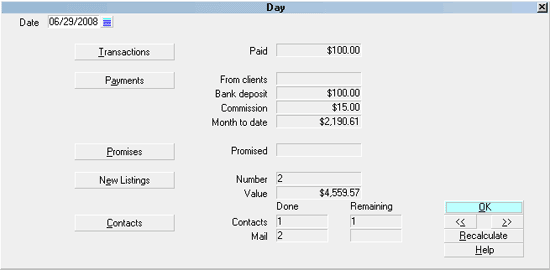
Day form
Date
The date displayed is the calendar date in the
month, day and year for which the data pertains to.
This is the date displayed as MM/DD/YYYY.

Paid
This is the total value of all positive To Us or
Direct amounts from all transactions with a Posted
Date that matches the date of the daysheet you are
viewing. Any transactions that have been flagged to
"omit from daily cash report" are not included in
this total value. Negative transactions are not
included in this total.
Transactions
Click the Transactions button to to the left of
the Paid figure to display the list of all Debtor
transactions whose Posted Date matches the date
of the viewed day.
If there are no transactions with a matching Posted
Date, you will be prompted to clear the search
criteria. If you select No, you will be returned
to the Day screen.
If you select Yes, you will be navigated to a
general Browse Transaction list, financial type
Payment, inclusive of ALL payment dates in the
system.
From Clients
This is the total amount of client payments posted
on the viewed day and reflects the amount of client
Receivable money that was applied on the Daysheet
date. These are the amounts you've posted as a
result of receiving client checks paid to you by
your clients to cover commissions/ fees/ charges owed
to you as invoiced to them on previous Statement
runs.
Payments
Click the Payments button to the left of the From
Clients figure to display the list of all Client
Payments whose applied Payment Date matches the
date of the daysheet day.
If there are no client payments with a matching
payment date, you will be prompted to clear the
search criteria. If you select No, you will be
returned to the Day screen.
If you select Yes, you will be navigated to a
general Browse Client Payments list inclusive of
ALL payment dates in the system.
Bank Deposit
This is a calculated field that should balance to
your trust deposit in dollars for the viewed day.
This is the total of the Paid and the From Clients
fields. Negative entries such as NSF and other
reversals are not included in this figure.
Commission
This is the total amount of the commissions due you
from debtor payments posted for the viewed day. Any
transactions which are set to Omit from Daily Cash
Report will not be included in this figure.
Month To Date
This is a calculated total of month-to-date
Commission computed from the 1st day of the calendar
month to the date in the same month you are viewing
in the daysheet history. This field is only
cumulative in the same calendar month and is rolled
over to zero at the end of each calendar month.
Promised
Expected promise dollars may be stored 2 ways
in the system and this metric takes both into
consideration.
1. From the Transaction tab on each debtor, the
calculation looks for any Financial Type Payment
transactions which have a Payment Date matching
the viewed day but which have not yet had a Posted
Date applied. Any payment transaction with Omit
from Daily Cash Report flagged is excluded.
2. All Promise Contacts with a Due Date matching
the viewed daysheet date that are In Progress AND
includes a figure in the Amount field are added
to the total Promised dollars for the day.
Promises
Click the Promises button to the left of the
Promised figure to display the list of all debtor
transactions whose Payment Date matches the date of
the viewed day with no Posted Date entered on the
transaction.
If there are no promised payments with a matching
payment date, you will be prompted to clear the
search criteria. If you select No, you will be
returned to the Day screen.
If you select Yes, you will be navigated to a
general Browse Transaction list, financial type
Payment, displaying ALL payment dates in the
system.
Number
This figure reflects the number of new accounts
listed on the viewed date.
Value
This is the dollar total of the accounts listed
on the viewed date. It is computed from a sum
total of all Original Principal plus all Original
Interest amounts input on the daysheet date.
If a Judgement has been entered on an account,
then the Judgement Principal and Judgement Interest
are used in the totals. On these records, the
Original Principal and Original Interest prior
to the Judgement Date are ignored.
New Listings
Click the New Listings button to the left of the
Number field to display the list of all debtor
accounts whose Listed Date matches the date of
the viewed day.
If there are no accounts with a matching Listed
Date, you will be prompted to clear the search
criteria. If you select No, you will be returned
to the Day screen.
If you select Yes, you will be navigated to a
general Browse All Debtors list displaying all
accounts, open and closed, across all listed
dates.
Contacts Done
This is the total number of non-Letter type
contacts scheduled with a Due Date equal to
the daysheet date. It does NOT count how many
contacts have been marked Completed on the
calendar date.
Contacts
Click the Contacts button to the left of the
Contacts Done field to display a list of all
contacts whose Due Date matches the date of
the viewed day.
If there are no contacts with a matching Due Date,
you will be prompted to clear the search criteria.
If you select No, you will be returned to the Day
screen.
If you select Yes, you will be navigated to a
general Browse Contacts list of all types and
all Due Dates, both In Progress and Completed.
Remaining Contacts
This is the total number of non-Letter type
contacts with a Due Date equal to the calendar
day being viewed, which remained In Progress at
day's end.
Mail
This is the total number of Letter type contacts
scheduled with a Due Date equal to the daysheet
date. It does NOT count how many Letter contacts
have been marked Completed on the calendar date.
Remaining Mail
This is the total number of Letter type contacts
with a Due Date equal to the calendar day being
viewed, which remained In Progress at day's end.
Help
Select this button for help on the Daysheet screen
and links to related topics.
Recalculate
Select this button to recalculate figures on the
daysheet date being viewed. It is possible to
recalculate only in your active database. It is
not possible to Recalculate in the Archive database.
OK
Select this button to go return to the previous
screen.
<<
Select this button to go to the previous Daysheet.
>>
Select this button to go to the next Daysheet.
Delete
This button is visible only on the list of all
Daysheet dates. Select this to delete the
highlighted item from the list.
Edit
This button is visible only on the list of all
Daysheet dates. Select this to open and edit
the highlighted item.
Cancel
This button is visible only on the list of all
Daysheet dates.
See Also
- Daysheet Basics - Introduction/Accessing
- Recalculate Daysheets
- Create New Daysheet
| 
Was this page helpful? Do you have any comments on this document? Can we make it better? If so how may we improve this page.
Please click this link to send us your comments: helpinfo@collect.org