Payment
The client Payment tab is used to store payments received
from Clients as a result of your invoicing them for
collection services rendered. The tab is located in the
lower portion of the Client screen with the other subfile
tabs ( Debtors, Invoices, Notes, Contacts, Attachments).
You may also post other charges to the Client's account,
such as legal costs, collection fees, and other incidental
charges as per your agreements with your clients. Charges
to the client are applied by using a negative sign in front o
f the amount to be charged, as this will add to their balance
forwards for that remittance period.
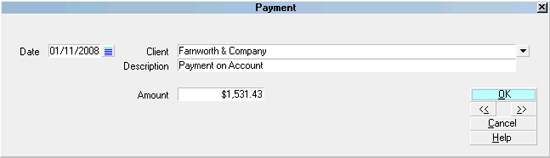
Client Payment Screen
Payments are accurately reflected in your month end
Statements/Ivoices.
The Payment is credited to the Client's account.
 The Payment tab on the Client screen is NOT used for Debtor
payments. To apply Payments from Debtors, use the
Transaction tab on the Debtor screen. This can
be accessed on a per debtor basis or via the
menu path" Daily Administration\ Payments and Charges\Debtor
Payments and Charges".
The Payment tab on the Client screen is NOT used for Debtor
payments. To apply Payments from Debtors, use the
Transaction tab on the Debtor screen. This can
be accessed on a per debtor basis or via the
menu path" Daily Administration\ Payments and Charges\Debtor
Payments and Charges".
Client
This is the name of the Client for whom
you are about to post this current payment
or charge. If this is blank, press F2 OR
click the drop-down arrow to pick from your
Client list. If you are posting from the
Payment Tab on a specific client screen, you
should see the current Client's name
already populated in this field.

Date
This field displays the date you received
and deposited the payment. Press F2 OR click
the calendar icon at the right of the field OR
manually input the date. This date will be
used when generating statements.
By default, the current date is displayed.
It is very important to NOT back-date a
client payment into a month or other
statement cycle that you have previously
finalized by generating/printing your
Statements and Checks for. The system has
no way to include a new transaction
line item into the accounting for a period if
that period is already considered closed.
Amount
This field shows the amount of the Client
payment or charge to the Client account. Please
note positive entries are credits to the
Client's account while negative entries are
debits.
Description
This is a brief description of the payment
or charge for your internal records.
Client Payments appear on statements prefixed with
"Client Payments Processed".
Delete
This button is visible on the list of
all Client payments. Selecting this
button will delete the highlighted record
from the database.
Edit
This button is visible on the list of
all Client payments. Selecting this button
will allow you to edit any data on an
existing record.
New
This button is visible on the list of all
Client payments. Selecting this button
will save any data you have entered and
create a new record.
Help
Press this button for help on the
Payment screen and links to related
topics.
Cancel
Selecting this button will ignore any data
you have entered and return you to the
previous screen.
OK
Selecting this button will save any data
you have entered and return you to the
previous screen.
<<
Selecting this button will take you back
to another record.
>>
Selecting this button will take you forward
to another record.
Importing Client Payments
As of version CV11.4.3, you can import and export Client
Notes, Client Attachments, Client Contacts and Payments.
This requires that you are licensed for the optional
Import/Export module.
Sample import maps are shipped with Collect! and are
available for download from the Member Center.
See Also
- Client Topics
- Import/Export Topics
| 
Was this page helpful? Do you have any comments on this document? Can we make it better? If so how may we improve this page.
Please click this link to send us your comments: helpinfo@collect.org