Copy Operator Configuration
The Copy Operator Configuration feature allows you to set
Operator Level access rights permissions by adjusting the
settings on one Operator, then copying the configuration
to the whole group of users who share the same Operator
Level. This ability reduces the time it takes to modify
a large number of users' when your internal processes change
and require that you need to increase OR reduce operator
access within your system.
This feature requires that you have already set the configuration
for one operator that is the same user level as the other
operators that you want to be affected the by changes. After
making all your setting modifications, you then select this
operator in the Copy Operator Configuration screen, located on
the menu path \System\ Rights\Copy Operator Configuration. You
will get the Copy Operator Configuration popup which asks you
to complete 3 fields.
The files affected in your system are what is called the CFG,
or configuration files that exist for each user entered into
the system. When you click "Copy" to apply the settings, the
system creates a CFG file for each operator with the same user
level that was selected in the "Level" field. Additionally,
if you have checked "Overwrite existing", the system will
refresh any existing CFG files that it finds for operators with
the same user level, updating the access rights you wished to
add to, or remove from, that entire Level of users. If you do
not check "Overwrite existing", any user IDs who have a
configuration file already established will be left alone.
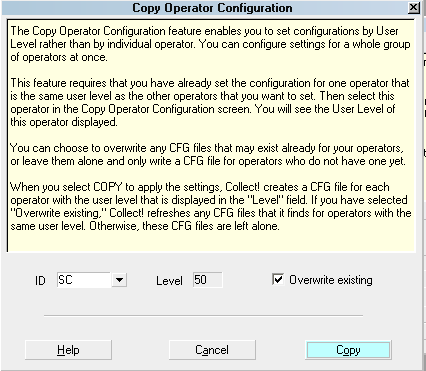
Copy Operator Configuration
 If you have not yet set the configuration for any
operator, choose 1 representative Collector
ID and set all the permissions and WIP Options
that you wish to establish as your Level
settings standard. After making any adjustments
to the system defaults on screen and field access
rights, input your WIP Option preferences and
" Save as Default". The sum total of all these
settings are now contained in this user's CFG
file. Use this Collector ID as the template
from which to copy to all users in the same
level, selecting "Overwrite existing" when
you initiate the process.
If you have not yet set the configuration for any
operator, choose 1 representative Collector
ID and set all the permissions and WIP Options
that you wish to establish as your Level
settings standard. After making any adjustments
to the system defaults on screen and field access
rights, input your WIP Option preferences and
" Save as Default". The sum total of all these
settings are now contained in this user's CFG
file. Use this Collector ID as the template
from which to copy to all users in the same
level, selecting "Overwrite existing" when
you initiate the process.
Accessing Copy Operator Configuration
The menu path is \System\Rights\Copy Operator Configuration.
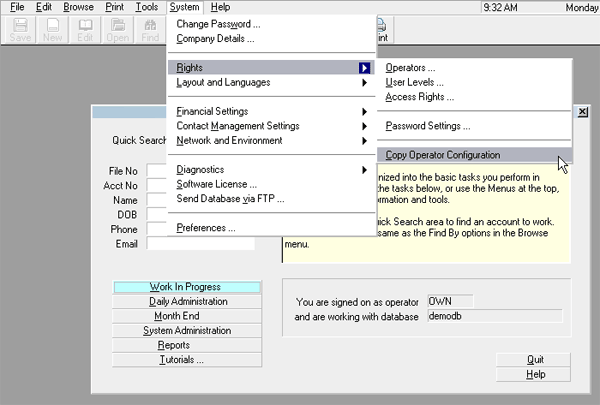
Accessing Copy Operator Configuration

ID
Select an Operator ID from the pick list. This is
intended to be the operator who you have already
made changes to and saved a fresh configuration
file for. It is this user ID that is going to
be your configuration template for changes that
will be applied to all the other users in the same
Operator Level.
Level
This field displays the User Level of the Operator
selected in the ID field. All Operators with this
User Level will have the same configuration set
when you click "Copy".
This field is read only and populated when you enter
the user ID.
Overwrite Existing
Check the box to switch this ON if you want the
CFG files of any existing users to be updated with
the current permissions being written to the level.
Leave this switch unchecked in the OFF position to
create a CFG file with the settings you just created
for users within the selected level that do not
currently have a CFG file.
CFG files are stored on your server in your CV11 folder,
within a sub-folder called "config".
Help
Click HELP to view more information about Copy
Operator Configuration and related topics.
Cancel
Click CANCEL to close this screen without proceeding
with any changes.
Copy
Click COPY to proceed with copying the selected
operator's settings to all other users in the same
level. Only if you check "Overwrite existing" will
users who have established CFG files on the system
be affected by these changes.
Troubleshooting
When the update is done, you will receive a popup window
acknowledging that your process has completed successfully.
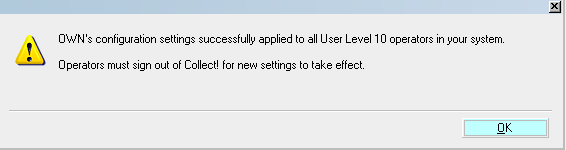
Copy Operator Configuration Successful
This means that you have now created a configuration (CFG)
file in the \CV11\config folder for each Operator ID with
the User Level that was displayed in the Copy Operator
Configuration screen.
If for any reason the system cannot complete this operation
successfully, you will receive a popup message indicating
failure.
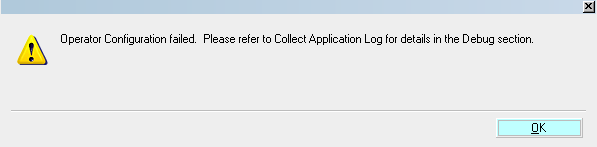
Copy Operator Configuration Failed
To get details regarding what caused the failure, the menu
path is \System\ Diagnostics\ Application Log. Issues relating
to the process failure will be logged under the "Type" called
DEBUG. To see only these entries, click the "None" button to
clear the other viewing checked boxes and check "Debug". The
Log Viewer will clear and display only these entries. You can
control the Log Viewer by checking and unchecking the "Type"
selections in the lower part of the screen. Which Types are
checked are what will be included in the logged entries display
being viewed.
In the following example, the screenshot of the Log is
indicating that the selected user ID to copy from, SAL,
does not have a CFG file established to complete the copy
CFG file request. The remedy would be to redo the process,
this time selecting the intended user ID to copy from in the
level.
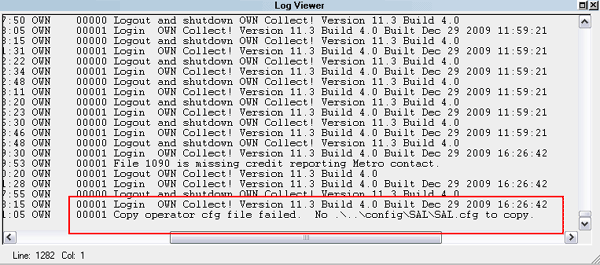
Application Log Entry for Copy Operator Configuration
See Also
- WIP Options
| 
Was this page helpful? Do you have any comments on this document? Can we make it better? If so how may we improve this page.
Please click this link to send us your comments: helpinfo@collect.org