How To Use The WIP List
When accessed, the WIP List will display all the accounts meeting
the search criteria predefined by the settings and preferences.
To enter into the list, the Operator clicks the first file at the top
of the list. Once the debtor is displayed, the Operator then performs
the work to be done on that individual account. Once the Operator has
completed the work on the account (i.e. made their call, documented
their notes), they need to (a) finalize the Contact Event which brought
them to this account and (b) set up a new, future-dated event to
re-insert the account back into the WIP schedule for the next
occasion it is to appear in their WIP list.
You will note that when an account is being accessed via an active WIP
List, that there is a yellow bar just above the subfile Tab area of the
lower debtor screen. The text within the yellow bar represents the work
(aka Due) date and the contents of the Description line of the
contact event. The purpose of the yellow bar is provide a fast-path
method to the collector to access the contact event being addressed so
that they do not have to open the Contacts Tab and manually search for it.
The collectors exit the current account and advance to the next account
steps are:
- Click the yellow bar containing the WIP event that brought
you to the account.
- This will open the Contact which is In Progress that the
Operator has now completed today's work on. Click the radio button
beside the word "Completed".
- Click the OK button in the lower right of the Contact window
to close and save.
- Click the double arrow in the lower right corner of the
Debtor screen just under the OK button.
- You will get a popup entitled " Schedule Next Contact - New"
if your site has checked ON the WIP Option "Always show next
contact when". We strongly recommend this setting to avoid
operator error in forgetting to set their next work date.
Accounts without an In Progress contact event of the default types
Review, Phone, Promise or Other do not appear in a collector's WIP
List. With the fresh "Schedule Next Contact - New" on the
screen, complete the mandatory fields of Type, next work Date,
Priority (may be a prefilled default), Operator ID and
Description. The default Operator will always be the assigned
Operator on the account. Using the drop-down arrow, another
Operator ID can be chosen, if applicable. It is recommended to
input a free-hand Description if the Type is Review, Other or
Promise as a 'next step' reminder to themselves. Optional
parameters are Repeat cycle, Amount, Class ( user-defined/free-form)
and Time. Time queueing is recommended for specific/as-needed
accounts and NOT recommended to be used on EVERY account. This
latter can negatively impact a WIP List by creating an inescapable
sub-WIP of timed calls, leaving other inventory on the desk falling
into backlog and unworked.
- Click the "Next>>" button in the lower right corner of the
Contact window to migrate to a fresh account to be worked.
- Click the ">>" in the lower right corner of the Debtor window
and just beneath the OK button to receive your next account from
your WIP List.
 If you have more than one In Progress event that met
your WIP loading options, you may be presented
with another Contact event to be completed for
the same debtor. Simply repeat the completion
steps from above and click ">>" again.
If you have more than one In Progress event that met
your WIP loading options, you may be presented
with another Contact event to be completed for
the same debtor. Simply repeat the completion
steps from above and click ">>" again.
WIP List And Mode
The system default for WIP lists is that ONLY Mode Active accounts
will be selected. This is so that PIF/SIF/BAN etc accounts are not
presenting to collectors if there remains any In Progress contacts
still on the account at the time it was closed.
This can be modified for specialized staff who may have reason to
queue Mode Closed accounts creating an individual WIP default for
them that includes the WIP Option "Show all modes" being checked ON,
then "Save as Default" for that Operator.

Contacts In The WIP List
Every item that is displayed in the WIP List is actually a
Contact scheduled for the Debtor with a Due Date and a Type.
The Type and Due Date determine if and when a Contact appears
in the WIP List.
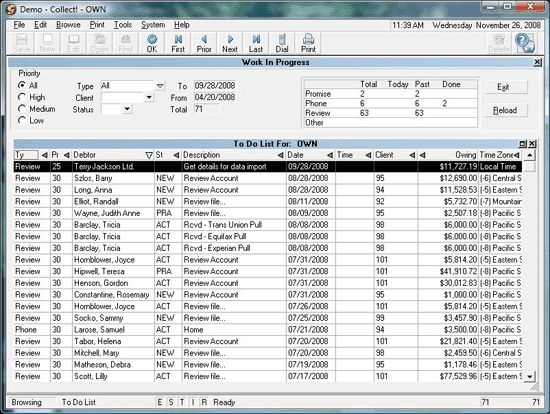
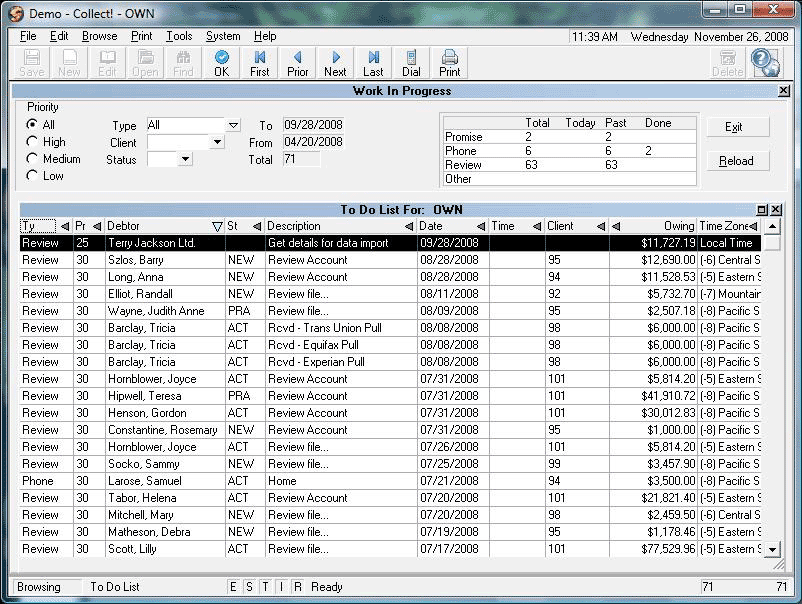
Work In Progress To Do List
Usually each Operator has their own WIP List. Contacts are generally
assigned to the Operator who owns the Debtor account. Then the
contact is displayed in the WIP List for that particular operator.
If you were to load the contacts for a different operator, you would
see all the contacts scheduled for that operator's accounts. It is
possible to create Pool Desks by utilizing the " Operator Group" function.
This requires filling out the Group Tab for the Operators you wish to work
a group WIP list and checking the "Enable Operator Group". Each collector
who is to have WIP List access to that desk needs to be defined in the
Operator list in this Group Tab.
Items in the WIP List are Contact Events, not accounts. When you
work the contact and mark it done, it disappears from the
WIP List. It is important to always set up a new Contact with
the next work date before leaving the account. This too can be
controlled and automated so that collectors are forced to ensure
there is a fresh Contact before the WIP list will allow them to exit the
account. This is controlled by the "Always Show Next Contact When"
switch located in the WIP Options list of preferences that can be
defined on a system-wide basis or on a per Operator basis with saved
Default settings. See WIP Options for more details.
Choosing A Way To View Your Contacts
The Work in Progress contains several settings
which enable you to filter your Contacts or organize them.
Priority
Use this column to view your contacts according to
order of priority. 99 is highest and 10 is lowest.
Select High and the To Do List will show you
the Contacts with the highest priority.
How your site sets the conventions is completely an
individual company choice. Some sites prefer lower
numbers to reflect more important tasks while others
prefer the higher the number, the more important the
task.
Additionally, you can have internal conventions like
Regular ACT status with a regular Review is a Priority
50, a new account on the desk has a Review with distinct
Description (i.e. New Business) and is set with a level 99,
and so on.
Type
The shipping default of the WIP Reload Filter is to load
types Promises, Phone, Review and Other automatically
when a WIP list is displayed. These can by sorted by
Type and sub-sorted by Priority and/or Description etc.
on a per Operator basis.
Your company workplan strategies will determine
the order of operations you want your collectors to be
working their accounts.
There is an option in the WIP Filter screen to alternatively
load All contact types which is user selectable. This
would then include event types such as Letter, Contact Plan,
Change Status and other non-collection related events.
Client
This drop-down filter provides the ability to drill down
for accounts specific to one client. In the event of an
audit pending or a focus blitz to elevate results for a
key client, your collectors can sub-WIP so that events
pertaining to a single client may be concentrated on as
needed.
Status
Choose a debtor Status if you want to filter the list by
this parameter. This allows your collectors to sub-WIP
dynamically as per your company's workflow preferences:
i.e. BPR/PBRs from yesterday, PRPs pending, then NEW, followed
by ACT and SKP.
Sort Columns In The WIP List
Columns in the WIP list which are able to be sorted display
with a small triangle on the extreme right side of the
column header label. Clicking on the triangle will invoke
an ascending or descending sort order. Clicking the same
triangle again will reverse the order. Use of this feature
is an effective means of sub-WIPing your list after primary
filters have been chosen.
Reload
Operators may click RELOAD button to refresh their WIP lists
as often as they wish. Management would use this function to view
different Operators' WIPs on demand for throughput and
workstandard reviews of desk inventory.
WIP Options And Filters
There are a variety of software switches and features available
to optimize the functionality of each Operator's WIP List.
Phone Contacts
If you have configured your softphone feature to allow direct
dialing of a phone number by clicking on the phone icon beside
a phone number, you can check the WIP Option switch "Automatically
display dialer" and the system will start dialing for you if the
contact you select is a Phone type contact Event.
Timezone
If you insert the field Timezone into your WIP display of columns
being viewed, you can sort by this column to target accounts in a
timezone of interest. This is particularly useful where an
office covers multiple timezones and is able to get in primetime
evening calls in a debtor's timezone while it is still afternoon
in their local timezone.
Force Feed Contacts
This switch in the WIP Options window enables you to set a
forced order of operations to work accounts which the
collector will not be able to override by trying to select
an individual account out from the middle of their day's WIP.
After checking the switch ON, you then choose from the 3 possible
force orders:
- By Default will present the collector with contacts loaded with
today's date at the top and work down to the oldest prior date at
the bottom, then proceeding to the bottom sequentially. As collectors
use their >> arrow keys on the debtor screen to advance to the next
account in their WIPs, they will be presented automatically with the
next account in the list. If there are more than one account for the
day, the load is sub-sorted by Priority from highest to lowest, followed
by sort by Name, followed by sort by Type. Timed accounts will appear
at the bottom of the list and pop up to the Operator as the times
become due for their date. The collector must be in the act of
exiting an account in their WIP in order for a timed account to pop up.
- By Priority will load accounts from highest priority
number to lowest and move sequentially to the lowest as the collector
uses the >> arrow keys on debtor screens to advance to the next
account. If there are multiple accounts with the same Priority, then
they will Date order oldest to newest, followed by a Type subsort then
Name sub-sort if there are multiple accounts with the same Priority and
Date. Timed accounts will appear at the bottom of the list and pop up
to the Operator as the times become due for their date. The collector
must be in the act of exiting an account in their WIP in order for a
timed account to pop up.
- By Date will load accounts in a descending order of oldest at the top
to newest towards the bottom and move sequentially to the lowest as
the collector uses the >> arrow keys on debtor screens to advance
to the next account. If there are multiple accounts with the
same date, they will subsort next by Priority highest to lowest, followed
by Type then by Name. Timed accounts will appear at the bottom of
the list and pop up to the Operator as the times become due for
their date. The collector must be in the act of exiting an account
in their WIP in order for a timed account to pop up.
Pick a Date Range
From the Reload window, you can select "Search by range..." by
clicking the radio button for this and 2 more date fields popup
for entry of the From/To range of interest. This is used when
a targeted next work date range is of interest.
An Operator must be in a WIP list in order to be
presented with Timed accounts. If you are anywhere
else in the system (i.e. Browse list or other area
of the software), Timed accounts do not popup.
Orphaned Accounts
Ordinarily, when you work a contact, you mark it "Completed".
You should always have at least one "In Progress" contact in one
of the WIP default types of Review, Phone, Promise or Other.
In the absence of such an In Progress event, the account will
not popup in an Operator's WIP list and will become "Orphaned".
This means the account is sitting dormant on a collector's desk
but not being seen by the collector.
It is recommended to regularly run a utility report located via
the menu path of "Tools\ Utilities\ Orphaned Account Search" to
find any such orphaned accounts and reassociate them with the
collector's WIP list. You will be prompted to insert an In
Progress Review type Event that will appear in the collector's
WIP with the Description of "Forgotten".
See Also
- Working With Collect!
- How To Setup The WIP List
- Contacts Versus Contact Plans
- Timezone Alerts
- Set Timezone
- Reload Work In Progress List
| 
Was this page helpful? Do you have any comments on this document? Can we make it better? If so how may we improve this page.
Please click this link to send us your comments: helpinfo@collect.org