Daysheet Basics
The Daysheet is an online record that gives you a breakdown
of everything that happened in the company on a given day, both
in summary form and with the ability to click into another window
for a detailed line item breakout of the summary information.
Depicted are: New listings and total value of new listings;
Promised Payments; debtor Transactions posted, client Payments,
Bank Deposit, Commission, completed Contacts.
Transaction types where the switch "Omit from daily cash report"
is turned "On" with a check box in the transaction code setup will
not be included in the Daysheet information.
Direct payments do not appear in the daily Bank Deposit information
because this is not money that your company banked.
By default, each daysheet will recalculate automatically when
opened.
You may delete a daysheet without affecting any of the underlying
data that is displayed through the screen. When you recalculate
daysheets, they are automatically recreated.
Daysheets can be a very effective way of isolating records for
quick reference. Although this feature is often overlooked,
the information accessible through each daysheet provides exactly
what you need to see on an Operational level or to balance basic
accounting trust deposit detail for the day.
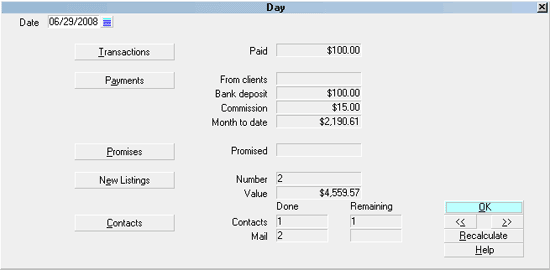
Day form
Accessing Daysheet
The Daysheet screen can be accessed in 4 ways. This will be
relevant for some users who do not all have the same access
rights to menus/screens. For executives and system administrators,
which method is chosen will be a matter of preference since all
avenues are available to you.
1. Using the menu bar at the top of Collect!, click "Browse",
then scroll down to "Daysheets" and select. The Day screen
will appear and from this selection of dates displayed, you
can select the specific date that you wish to review and drill
down in more detail.
If you are looking for a specific date, you can input the date
in the left uppermost column header field "Date" by clicking into
that field and keying in date of interest in MM/DD/YYYY format.
2. From the Main Menu, click the Daily Administration button, then
click Browse Daysheets.
3. Using the menu bar at the top of Collect! select Browse to
display the drop-down menu. Select Calendar from this menu and
a Calendar popup will be displayed. Navigate to and select the
day you wish view a daysheet for and highlight it WITHOUT pressing
enter or clicking on it. While the calendar is still displayed and
your date of interest is highlighted, press F2 you will be
navigated automatically to the daysheet for the requested date.
4. Or, while on any screen that has an icon for a calendar sitting
beside ANY date field, click on the small calendar icon. When the
calendar appears, navigate to the date you want to see a daysheet for
and highlight it WITHOUT double-clicking on it or pressing enter.
Press F2 as in method #3 above, you will be navigated automatically to
the daysheet for that date.

Missing Days In Daysheet View
When anyone signs into Collect!, a Daysheet is created.
Therefore, on the days no one sign into Collect!, no Daysheet
will be created.
Collect! will recalculate an existing daysheet or create a
daysheet if;
1. A transaction Posted Date, or Payment Date falls on the
day of the daysheet.
2. A Debtor is listed on the day of the daysheet.
3. A Contact is due or done on the day of the daysheet.
4. A Client Payment is posted on the day of the daysheet.
5. If a Debtor has been archived and had a Listed Date, transaction
Posted or Payment Date, or Contact Due or Done Date matching
the day of the daysheet.
Recreating Daysheets
Select Browse and then Daysheets to display the list of all
daysheets. Press CTRL+A, or choose EDIT -> Select All from
the top menu, to tag all daysheet dates. Delete them.
Select Tools from the top menu and then select Recalculate
to bring up the Recalculate Totals window. Select the radio
button "Don't calculate debtors". Check "Recalculate daysheet
totals" and leave the From and To fields blank.
Select the START button. Collect! will scan back 2 years and up
to 2 years in the future to recalculate your records.
When the process is done, select Browse, then Daysheets. If you are
missing days, it is because none of the rules above apply and
therefore no daysheet is required. If you do see some daysheets,
and the row cells is completely blank, it will be due to the fact that
you have an archived debtor account that had a contact, or transaction
or was listed on the day of the daysheet.
See Also
- Day
| 
Was this page helpful? Do you have any comments on this document? Can we make it better? If so how may we improve this page.
Please click this link to send us your comments: helpinfo@collect.org