Customizing TCN
Before covering customization, the next several paragraphs
will revisit general function and shipping defaults of the module
and then progress into modification.
Recap
Use of the interface requires that you have established an
account with TCN Broadcasting and that you have entered
your TCN login credentials in the TCN Setup screen in Collect!.
Collect! ships with 3 default reports for outputting to csv format
the accounts you have selected to be in the call campaign. It
also includes 3 default imports maps to incorporate the call
results into your system after each campaign has completed. Your
collectors who take live calls and notate their accounts is only
one aspect of campaign call result. The campaign call results download
contains all the unattended results such as No Answer, Busy,
Operator Intercept, Answering Machine Detected etc. Having
these call results on your files is necessary if you are needing
to provide audit trail of account worked frequency in your Notes
and/or Contacts Tabs on your debtor accounts.
Both the reports that generate the call list to upload and the
import maps to bring in the call results to your system can
be modified to suit individual company needs. However, if
you make modifications on the Collect! side that add, remove
or change the order of the csv file columns, you will also
need to modify the templates on the TCN website to match your
new versions. Failing to do this will cause your call lists
to be rejected as not being formatted correctly to be read by
TCN and your call results not being imported properly into
Collect!.
This topic will cover basic template customizing. You may
wish to obtain TCN tech support to assist you with creating
or customizing the templates on their so that the corresponding
processes on the TCN side map correctly with the changes or
new formats you have chosen to use.
 To position you for efficient communications with
TCN Technicians, please be advised that there is
a reverse terminology that exists depending on
which side of the interface is being considered.
If you are wanting to speak of your call report
that you send them, then to them, that is an
import. If you are wanting to speak to them
about a download of call results, then that is a
report to them and an import to you.
To position you for efficient communications with
TCN Technicians, please be advised that there is
a reverse terminology that exists depending on
which side of the interface is being considered.
If you are wanting to speak of your call report
that you send them, then to them, that is an
import. If you are wanting to speak to them
about a download of call results, then that is a
report to them and an import to you.
When you process campaign results into Collect! with an import map,
you are writing the dialer attempt history that did NOT result in
a live contact into your system. You have the choice of having
these results updated to debtor accounts Notes only, a completed
Phone Contact event only, or BOTH if you run the process twice by
selecting each option.
on each file that was in
On the Collect! side of the interface, there are two processing
functions in the menu path "Tools\ Batch Processing\ Process TCN Campaign":
Schedule Calls
This process uses a Collect! report from " Print\Reports
and Letters\ to create a call list to send to TCN.
There are 3 stock reports shipped with Collect!. Each one has a
matching Import Template at the TCN website.
There are default reports which have preconfigured templates already defined
for you on the TCN site. The TCN templates match the report output so
that TCN is able to correctly interpret the data being sent by the import
template that you choose to read in your call list. Collect! reports that
you may use to extract call campaign lists from your system to send to TCN are:
TCN Schedule Calls Home#/ZIP
Sends File Number, Name, Home Phone number and ZIP.
TCN Home#/POE#Cell#/Other#/ZIP
Sends File Number, Name, 4 Phone numbers and ZIP.
TCN Schedule Calls All Data/ZIP
Sends File Number, Name, 4 Phone numbers, Owing,
Charged Date, Last Worked Date and ZIP.
Download Report
This process uses a Collect! import,
from "File\ Import/Export\ Import File\" to incorporate call
results obtained from TCN back into Collect! Example,
if the campaign had Tel Res/No Answer as a result for
a specific debtor, that information goes back to the
account it pertains to. Each import map in Collect! has
a matching Report Templates at the TCN website.
TCN Import maps shipped with Collect!:
TCN Download Report - Contact
This import map brings in the results for each call
and creates a Phone Contact with a description that
identifies what the result was in the campaign. It
also stores the "short" result code in the cell
extension field which is visible on the main debtor
screen.
TCN Download Report - Notes
This import map brings in the results for each
call and writes results to the Debtor Notes. It does
not create a completed Phone contact but does store the
"short" result code in the cell extension field which
is visible on the main debtor screen.
TCN Call Report with Call ID
This import map brings in the results for each call
and creates a Phone Contact. It also stores the WAV
file of the recorded call for this account to the
Attachment field in the completed Phone Contact.
To use these import maps, it is very important that
you select the correct corresponding Report Template from
the TCN website, either "Record" (Last attempted call)
or "Call" (every attempted call).
If you do not want to create a completed Phone Contact
for every attempted call, you can choose the "TCN Download
Report - Notes" as your import map to use in processing
call results.
Alternatively, you may want to have both the noteline
audit trail as well as the completed Phone Contact. In
this case, you'd process the download file with both
import maps to store the data both ways.

Customizing
You can modify all of the Collect! report/import templates AND
the TCN templates imports/reports, as long as you make sure
that there is parity between both sides of the process.
For example, consider when your clients send you a new business
csv data file. If they inserted a column in the middle of the
spreadsheet, then your import map wouldn't work anymore because
everything would be out of alignment. The simple rule of editing
or creating whole new routines for campaigns is this: make sure
your output matches their input for number of columns and content,
and that their output for your import also has the same one-to-one
field mapping.
Alternatively, you may wish to have Technical Services on both
sides provide you with pricing for custom services to set up new
templates for you.
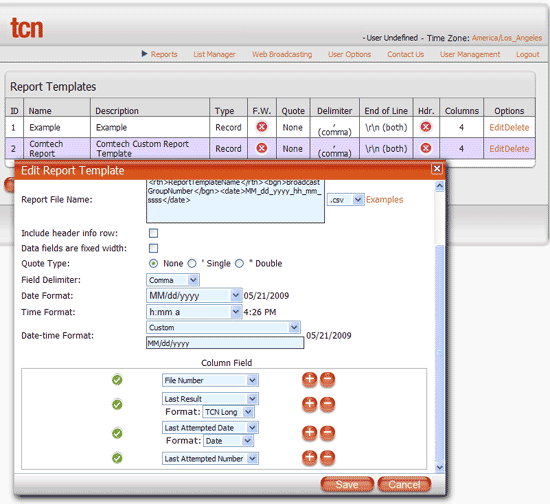
TCN Report Template
Here is an example of a TCN Report Template.
TCN Report Template
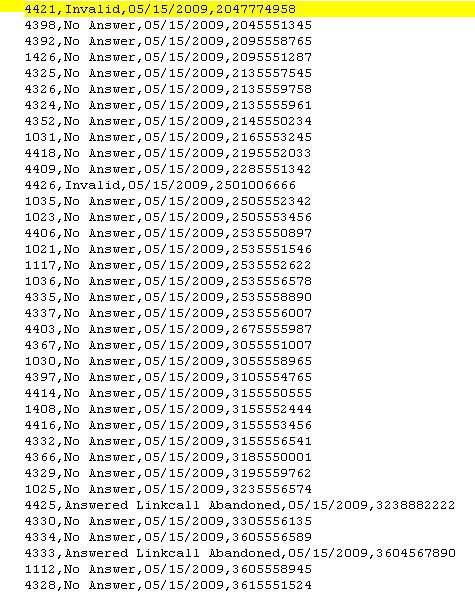
This template is used by TCN to generate a csv results report.
Sample TCN csv with Campaign Results
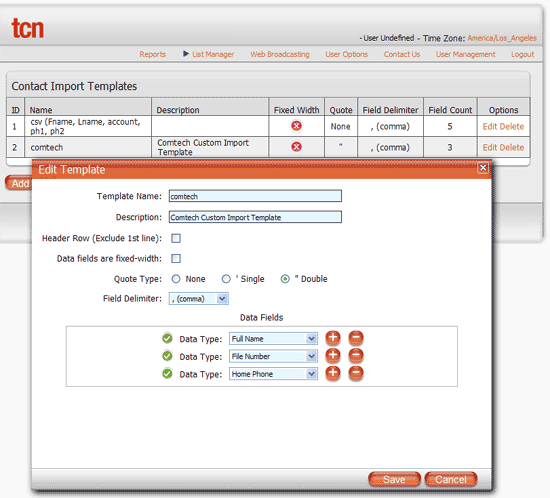
TCN Import Template
At the TCN website, you can store your own templates and Collect!
will retrieve them when it populates the pick lists in the TCN batch
processes.
Here is an example of a TCN Import Template.
TCN Import Template
This template is used by TCN when Collect! sends a call
campaign. TCN imports the data in the order specified in
the template.
Verifying A Call Campaign
Please ensure that you are sending only the accounts
that you intend to be dialed when generating your call campaign
lists. Running the report directly from your Print Menu and
examining the output prior to uploading to TCN will ensure
you are sending lists which contain what you intended.
You can add conditions to filter results to include or
exclude specific criteria to fine-tune your
call campaigns for best results. See the Help page
called How To Use Where and If Condition for
details on these higher order Report Writer functions.
Example: You can exclude statuses such as DIS or BAN which may
still be Mode Active in your database; impose list date ranges to
control call list size to optimize new(er) account campaigns from shelf
inventory campaigns; create a min-max balance threshold to be dialed, etc.
If you are handy with report writer logic, you can make custom
modifications to the default call campaign reports that you receive
with your system OR contact Technical Services to inquire about
pricing for the changes you'd like to have made.
Keep your data clean.
If your collectors become aware of bad or invalid phone numbers,
they are best to be removed from phone fields so as to not waste
dialer time or risk complaint of a number continuing to be called
after it was advised that the number wasn't correct for the debtor
on the file. As well, discourage your staff from using all 9's,
0's, 1's, 2's etc. or any other garbage data in the phone fields.
Your campaign result metrics available through TCN will not have
valuable stats if your call lists are inflated with uncallable
accounts - it will minimize your campaign's effectiveness, mask
your true contact percentages and erroneously inflate your
inventory penetration rates if your lists contain account
uncallable but extracted due to garbage data in the phone
fields.
If you wish to retain audit trail information of phone
numbers tried and removed, you have two ways:
- Use the Access Rights preference switch turned On for
" Log to Notes" for each phone field, OR
- Use the Phone Tab to maintain historical records by using
the Active Yes/No pick list for disabled phones as well as
removal from the front, main debtor screen.
TCN Scrub By ZIP
Scrub by ZIP is a service that TCN provides for establishing
Do Not Call areas. You must activate this with your TCN
provider and they will ensure that your TCN templates are
updated to process ZIP codes.
 Currently, Scrub By ZIP only works with
United States Zip Codes. Canadian sites
can check with their TCN representatives to
determine if a similar service exists for
Canadian Postal Codes.
Currently, Scrub By ZIP only works with
United States Zip Codes. Canadian sites
can check with their TCN representatives to
determine if a similar service exists for
Canadian Postal Codes.
See Also
- TCN Topics
| 

Was this page helpful? Do you have any comments on this document? Can we make it better? If so how may we improve this page.
Please click this link to send us your comments: helpinfo@collect.org