TCN Schedule Calls
The TCN Schedule Calls window is used to set the parameters
for the call campaign you are sending to TCN to run. Some
of the fields are filled in for you, but these can also be
modified. Enter here the descriptive name to identify this
call list, the date/time you want the campaign to be run,
dial order, timezone, and selection criteria that you will
be using to create your call list. The name of the account
selection report you use in " Print\ Reports and Letters" is what
you use to indicate the list criteria you are using.
Collect! ships with 3 reports that are set up already in the
TCN environment and will function without any further setup or
configuration.

TCN Schedule Calls
 If you enter invalid data in any of the fields,
you will be prompted to correct the
information.
If you enter invalid data in any of the fields,
you will be prompted to correct the
information.
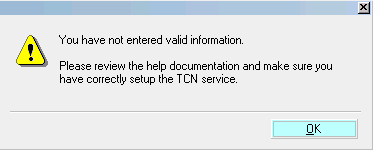
Invalid Information Entered
TCN Campaign processing requires that you have
established an account with TCN Broadcasting
and that you have entered your login
credentials in the TCN Setup screen in
Collect!.
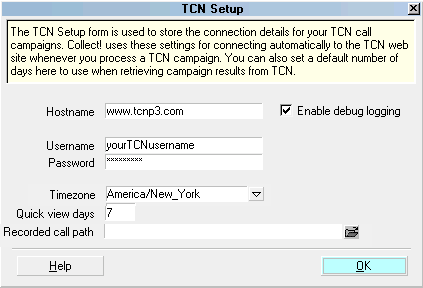
TCN Setup
Please refer to Help topic, Scheduling a Call Campaign,
for detailed steps.
Description
Enter a short unique description for this call campaign.
 Use a unique description for this particular
call campaign so that you can recognize
it in the list later on when you are ready
to process the results.
Use a unique description for this particular
call campaign so that you can recognize
it in the list later on when you are ready
to process the results.

Country
Select your country area from the pick list.
In most cases, you will not need to alter this,
unless you are campaigning on several continents.
Date
Enter the Date that you want the call campaign
to run. Default is the current Date. You can
change this as needed.
Time
Enter the Time that you want the call campaign
to begin. Default is the current Time. You can
change this as needed.
To
Enter the Time that you want the call campaign
to end. Default is End of Day or when the calls
are completed, whichever comes first. If you enter
an invalid time, you will be prompted to correct
your information.
Dial Order
This setting is used when you are sending multiple
phone numbers for each account in your report. It
controls the order in which numbers are attempted.
A good default is "First number." The setting
"Natural order" dials the numbers in the order
in which they appear in the report template,
from left to right.
Be aware that when you select "First number,"
TCN will only dial the first number it finds,
even if you have used one of the report
templates that sends up to 4 phone numbers.
The setting "Custom" may be selected if you have
previously set up a custom dialing order with your
TCN representative.
Time Zone
Enter the Timezone you are using for your Start
and End Time. This field may be filled automatically
if you set a Timezone in the TCN Setup window located
in the menu path "System\ Preferences\TCN Setup".
Import Template Number
Select the import template from the pick list. The
options shown are the available templates set up for
you at the TCN site.
You can customize the Import Template that you use
for your call campaigns on the TCN side. You would
also need to create new extract report(s) in Collect!
that will write out records to match your settings
on the TCN website.
Schedule Template Number
Select the type of calling template you want to use
for this broadcast. The options for this setting are
from your individual site Broadcast setup on the TCN
website side of the process.
Report Name
Select the name of the Report that you will be using
to create your call campaign as it is identified in
your Print Menu.
It is important that the output format of the report
matches a default Import Template of the same name at
the TCN website. Their campaign upload process is
always looking to match the name of your call campaign
to a predefined template on their side.
Scrub Cell Phone Calls
Select this option with a check mark if you want TCN to
scrub cell phones for the campaign you are scheduling.
This option requires that you have enabled cell
phone scrubbing with your TCN Broadcasting
representative.
See the Help topic, Scheduling a Call Campaign, for
more information.
Help
Click this button for help on the Schedule Calls
screen and links to related topics.
Back
Select this to return to the previous screen.
Next
Select this to create your call campaign and
upload it to the TCN website to be run.
See Also
- TCN Topics
| 
Was this page helpful? Do you have any comments on this document? Can we make it better? If so how may we improve this page.
Please click this link to send us your comments: helpinfo@collect.org