TCN Setup
The TCN Setup screen is located by the menu path
"System\ Preferences\TCN Setup" and used to store:
1. The login credentials that Collect! is to use to connect
automatically to the TCN website whenever you need to upload
a call campaign or download campaign results. These are
provided to you by TCN when you establish your company account
with them to use the service.
2. The path to where recorded call WAV files will be directed
when received as part of a campaign result download. Having
these files stored in a defined folder will allow you to
retrieve them inside Collect! and listen to recorded call
content as needed.
 You much have a recorded call agreement with TCN
in order to receive recorded calls from them
as a part of your campaign results.
You much have a recorded call agreement with TCN
in order to receive recorded calls from them
as a part of your campaign results.
3. The default value for the Quick View number of days is used
to define the date span that the Collect! Download Report will
use to populate a Start and End date range when the Batch
Process to Download Report is used. This is an editable field
in the actual process screen that may be overridden.
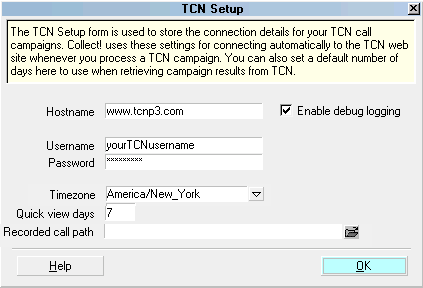
TCN Setup
The TCN Module is an add-on functionality. Contact
Administration at 250-391-0466 option 3 for
pricing options.
Hostname
This is the url provided to you by TCN.
Example:
Hostname: www.tcnp3.com

Username
This is the Username provided to you by TCN
to access their website.
Example:
Username: yourTCNusername
Password
This is the Password provided to you by TCN
to access their website.
Example:
Password: YourTCNpassword
Time Zone
Select a Timezone from the pick list to use
as a default. This can be modified as or if
needed.
Quick View Days
Enter a default number of days to use as a
Start and End date in the Download Report
function in Batch Processing. This date span
will define the campaign result date range
you are querying the TCN website for. This
date range ability is handy if you are gathering
data for inventory penetration rate analysis
for the company as a whole and/or need throughput
statistics for a specific client portfolio.
For example, inputting "10" in this field
will display a date range of 06/01/2015 to
06/10/2015 for the Start and End when you
bring up the TCN Download Report screen.
You can adjust the dates as needed on a per
download basis.
Recorded Call Path
Enter the location where you will be saving
your WAV files that are going to be returned
from TCN as part of your campaign results.
When the recorded calls are imported and
attached to their respective debtor accounts,
this path will all users in Collect! to access
that recording and be able to listen to it.
If you do not store your WAV files in the path
you define in this screen, they will not be
accessible from inside Collect! while on
an individual debtor file.
Example:
\\servername\sharedrive\TCNdialer_wavs
For details about calls recorded during
your campaign, see the Help topic,
TCN Recorded Calls.
Enable Debug Logging
Switch this ON to log your TCN to Collect!
and Collect! to TCN communications. When you
are just setting up your new account with TCN,
it prudent to have this ON so that Technicians at
Comtech and/or TCN can assist you if there are
any initial connectivity challenges to troubleshoot.
This switch should be left OFF for your normal
day to day batch processing of TCN campaigns.
Information which is logged via "Enable
debug logging" will be logged
in the "Debug" section of the
Collect! Application Log.
Help
Select this button for help on the TCN Setup
screen and links to related topics.
OK
Select this button to save your settings and
close the TCN Setup screen.
See Also
- TCN Topics
| 
Was this page helpful? Do you have any comments on this document? Can we make it better? If so how may we improve this page.
Please click this link to send us your comments: helpinfo@collect.org