TCN Download Report
From the Process TCN Campaign screen accessed by the
menu path "Tools\ Batch Processing\Process TCN Campaign",
select Download Report by clicking the radio button
next to this option. You will be able to search for all
the campaign Task IDs within the shown Date Range. You
can adjust the date range to include only those days
in which you have not retrieved results.
You can select the import routine that you wish to use
for processing the results.
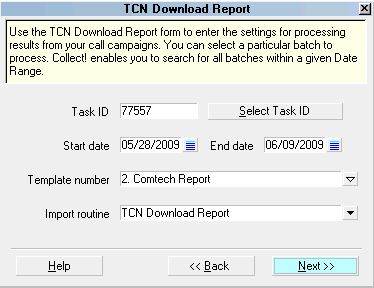
TCN Download Report
 If you enter invalid data in any of the fields,
you will be prompted to correct the
information.
If you enter invalid data in any of the fields,
you will be prompted to correct the
information.
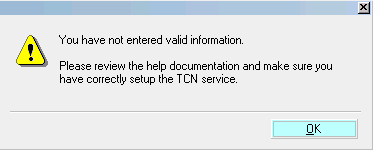
Invalid Information Entered
Campaign processing requires that you have
set up an account with TCN Broadcasting
and that you have entered your login
credentials in the TCN Setup screen in
Collect!.
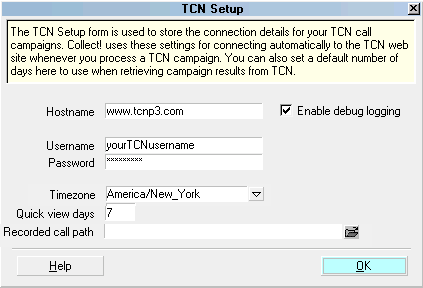
TCN Setup
See the Help topic, Processing Results from Call Campaigns,
for more details.
Task ID
This field displays the call campaign ID assigned
to your call list by TCN that you are about to
process. You can use the Select Task ID button
to generate a list of all call campaigns available
for download.

Select Task ID
When you click the Select Task ID button, the
system sends the Start and End Date parameters
to the TCN website to search for all call campaign
results available for download. The IDs in the
date range are displayed in a list for you to
choose which campaign results you want to download
and import into your system.
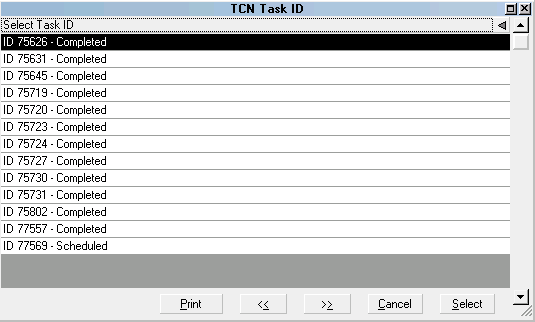
List of Campaign Tasks for Processing
Start Date
Select the Start Date as your "From" date to be
used in defining the date range of campaign result
reports that you want to download.
End Date
Select the End Date as your "To" date to be used in
defining the date range of campaign result reports
that you want to download.
Template Number
This pick list is generated from the choices available
for you from the TCN website. Collect! has several
default templates that match the TCN import routines.
You can create your own templates at the
TCN website. If you do, you will need
to also create an import routine in
Collect! that matches your custom
TCN template.
Import Routine
Select the import map name that you wish to use
for processing the campaign results.
"TCN Download Report - Contact" creates a
completed Phone Contact for each call result.
"TCN Download Report - Notes" writes the result
of each call to the debtor's Notes and does not
create a Contact.
"TCN Call Report with Call ID" is the import to
use when you have an agreement with TCN to include
a recorded call attachment in a WAV file format for
each call in the campaign that had communication.
These WAV files are imported as an Attachment in
the completed Phone Contact created by the import
of the call campaign results import.
For details about calls recorded during your
campaign, see the Help topic, TCN Recorded
Calls.
Help
Select this button for help on the Download Report
screen and links to related topics.
Back
Select this to return to the previous screen.
Next
Select this to proceed with the campaign results
download and import.
See Also
- TCN Topics
| 
Was this page helpful? Do you have any comments on this document? Can we make it better? If so how may we improve this page.
Please click this link to send us your comments: helpinfo@collect.org