Letter Service In Scheduler
Collect!'s Scheduler is a separate module available for
purchase that is designed to optimize your administrative
departmental efficiency. With this module, you can set
tasks to run automatically unattended after hours and/or
automatically during business hours without the necessity
of an attendant being necessary to launch any of the processes
or be involved by having to answer screen prompts.
The list of tasks you can automate with the Scheduler module
include:
* Create letter service daily output file
* Print reports/letters for clients and debtors
* Recalculate Totals
* Print Reports - extremely useful for any resource time
intensive items
* Database Snapshot and Maintenance
* Process TCN campaign results
* Import/Export data
* Credit Bureau Report to TU/EFX/EXP
* Any Batch Processing, i.e. Contact Plans, Assign Accounts
to Operators, etc.
* Generate Statements
* Archive Accounts
*
* Update NCOA from file
*
* Reconcile ACH Transactions (Billing Tree)
*
* Reconcile Credit Card Transactions (Billing Tree)
You control the days/times/frequency that the tasks of
your choice are scheduled for.
 Contact Administration at 250-391-0466 option 3
for pricing if you wish more information
on the add-on Scheduler module.
Contact Administration at 250-391-0466 option 3
for pricing if you wish more information
on the add-on Scheduler module.
The following is the procedure to set up and manage your
daily Letter Service batch processing.
When you configure a Letter Service task, the Scheduler
takes you through the setup steps that appear the same
as when you are manually creating your output file. The
singular difference is the absence of "Prompt when there
is a choice" option on the popup window. Since the
Scheduler is intended to run without an operator in
attendance, there can be no prompts which require an
operator's response.
 If you are scheduling both Letter Service and
hardcopy letters you will still print
in your office, it is very important to
make sure you Scheduler tasks place the
Letter Service job
FIRST with enough time
to complete before your inhouse print job
for hardcopy letters is initiated.
If you are scheduling both Letter Service and
hardcopy letters you will still print
in your office, it is very important to
make sure you Scheduler tasks place the
Letter Service job
FIRST with enough time
to complete before your inhouse print job
for hardcopy letters is initiated.
Collect! will allow you to generate both a hardcopy and letter
service data output on any letter set up in your Print Menu.
To ensure your Letter Service output file is created, this
special subset of Letter Contacts must be processed with the
Contact events marked done BEFORE any hardcopy letters are
generated to be sent to your inhouse printer. If your
hardcopy letters occur first, you will get paper output for
ALL your letters and an empty letter service output file.
The Scheduler is ordinarily running on your Server station.
It is OK to click where indicated if it is running to stop
it if you can see that it is NOT currently processing a task
that it is still in progress. Click into the body of the
Scheduler Tasks pane and then click New to enter your
Letter Service batch.
After clicking "New", you will get a Scheduler Task window.
Click the drop-down arrow beside Task and select "Letter
service" from the pick list.
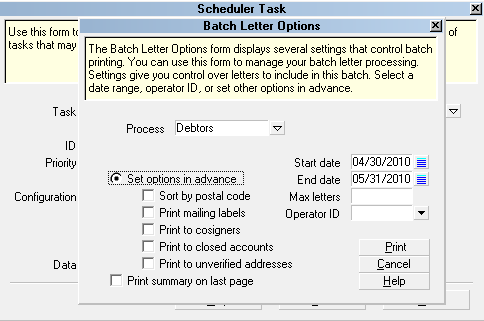
1. Click the Configure button to enter the Batch Letter
Options screen. Note that it looks just like the manual
version of this screen, except that you do not see the
option to "Prompt when there is a choice". The choices
must be decisioned in advance to avoid the process
grinding to a halt when the screen is waiting
for an operator response and no operator is present.
Batch Letter Options
The 3 necessary decisions surround what you want to do
in the event of the following 3 items in particular:
(a) Print to Cosigners. Check the box if you'd normally
answer Yes.
(b) Print to Closed Accounts. Check the box if you'd
normally answer Yes.
(c) Print to Unverified Addresses. Check the box if
you'd normally allow a letter to be generated on accounts
where the Address OK on the debtor account is NOT checked
On.
If there are any other parameters on this screen that you
would ordinarily modify, i.e. Date Range, Max Letters allowed
to generate, Operator ID associated with the batch, enter
those details on this screen.
Click the "Print" button in the lower right corner to
advance to the next setup screen.
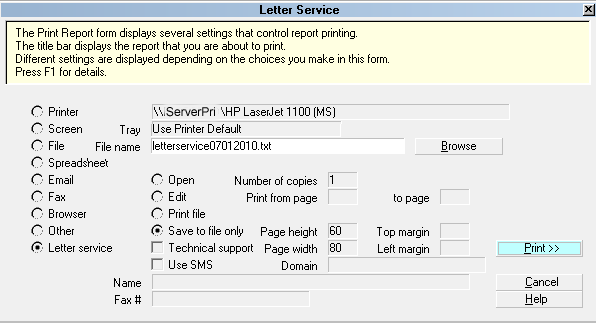
2. The Report Options screen is opened and shows you that
it is already configured for the Letter Service file
destination. If the path displayed for where the file
will be saved is not where you'd like, you can edit this
field to input your file path location of choice. All
the other options are Read Only and cannot be modified.
Letter Service File Options
Click the "Print" button in the lower right corner to
proceed to the next setup screen.
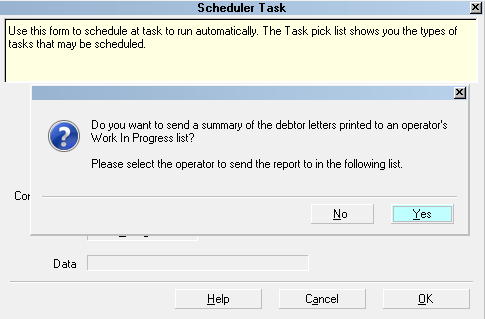
3. The next popup asks if you want to send a Summary
of the letters being generated to a specific operator ID.
This is the same type of summary report that regular letter
batches produce.
Prompt to Schedule a Summary
If you do not want the Summary report, click "No" and
you will be returned to Scheduler Task window. You will
see that the color on the Configure button is now green,
telling you that all the necessary information was
completed.
If you want the Summary report, click "Yes" and proceed
to step 4 below.
If you selected No, the following are the steps to complete
your setup. You must enter your preferences for the
following options:
(a) Interval. Click the drop-down arrow and choose
Daily if you want to remit to your letter service provider
on a daily basis.
(b) Select the Date and Time for the first process to
run. The Scheduler will look after it's own repeat
intervals, depending on your setting. "One time only"
events are not repeated.
(c) Click OK in the lower right corner of the screen
to accept the setup of your Letter Service task, and
you will be returned to the main Scheduler Window.
(d) It is very important to restart the Scheduler.
If you do not, the module is not engaged and active.
This will result in nothing being launched when
date/time due. Click the START SCHEDULER button
in the lower left corner of the Scheduler window.
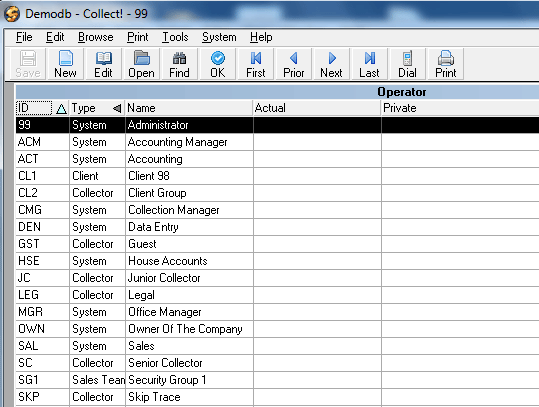
4. If you selected "Yes" for the Summary report, you can
now select an Operator ID that is to be the recipient of
the report.
List of Operators is Displayed
This report is the same as the type generated for regular
print letter batches which provides totals regarding the
number of letter contacts processed and completed
successfully.
The following are the steps to complete your setup.
You must enter your preferences for the following options:
(a) Interval. Click the drop-down arrow and choose
Daily if you want to remit to your letter service provider
on a daily basis.
(b) Select the Date and Time for the first process to
run. The Scheduler will look after it's own repeat
intervals, depending on your setting. "One time only"
events are not repeated.
(c) Click OK in the lower right corner of the screen
to accept the setup of your Letter Service task, and
you will be returned to the main Scheduler Window.
(d) It is very important to restart the Scheduler.
If you do not, the module is not engaged and active.
This will result in nothing being launched when
date/time due. Click the START SCHEDULER button
in the lower left corner of the Scheduler window.
REMINDER. You must make sure that Letter Service
batch processes are run AND completed BEFORE
any regular hardcopy to printer type daily
letter batch is initiated. If the order of
operations is not maintained, the regular
print batch of letters will generate and
Complete ALL letter type contacts, leaving
nothing found to be sent to the letter service
company.

See Also
- Scheduler
- Scheduled Batch Letters
| 
Was this page helpful? Do you have any comments on this document? Can we make it better? If so how may we improve this page.
Please click this link to send us your comments: helpinfo@collect.org