Home   Contents   Index   Member Center   Download   Collect! Users   Help 
Collect! logo
Collect! logo
 
Collect.org

Collect! Credit and Collection Software™

  Related Information Examples & Tutorials

How To Setup Letter Service File Format - Ontario Format

This Collect! Help topic is intended to provide technical information for implementing, using and supporting the Letter Service Bureau support. It should be used by technical staff setting up Collect! and by the Service Bureau staff in interpreting the structure and content of the letter templates used in Collect!

The Collect! Service Bureau function produces files in the 'Ontario' file format, by default.

tip.gif If you wish to produce a non Ontario file, please see How To Setup Letter Service File Format - Not Ontario Format.

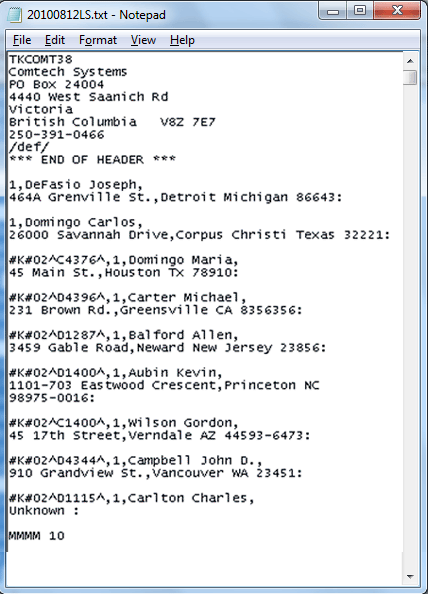
These are flat ASCII files with the format defined below:

Header File

This file format specifies an overall header (typically read from a file named TUHEADER.FLE in the CV11\bin folder and a section for each letter including a header section. This section is for the letter number, Debtor name, Contact and address. There is another section for variable content in each letter, plus support for variable length lists of data.

The header file TUHEADER.FLE may be provided by the letter service bureau and contains all characters up to and including the blank line under the *** END OF HEADER *** section shown below. If your letter service bureau requires this file and has not provided it, you will need to create one in whatever form they require for their processing.

Top of page.

File Format Overview

Within Collect!, letters are stored with codes that represent database information and other aspects to be printed. When a letter is being sent to a letter service bureau, Collect! only outputs the data itself, plus a letter number to identify which letter template the data is to be inserted into.

Collect! automatically performs analysis of the letter being printed, and runs a three pass data output procedure. The first pass creates the letter number and Debtor name and information. The second pass outputs all other fixed variables, and the optional third pass outputs any lists and variable length data.

File Format:

Client Name
Client Address
/def/
*** End Of Header ***

123,
Name Line,
Name Line 2,
Name Line 3,
City ST ZIP:,
Insert 01,
Insert 02,
Insert 03,
Insert n

123,
Name LINE,
Name LINE 2,
Name LINE 3,
City ST ZIP:,
Insert 01,
Insert 02,
Insert 03,
Insert n
{List line 1
List line 2
List line 3
}

MMMM X - end

Top of page.

Letter Service File Format

At the top of the file is a header section read directly from the file named TUHEADER.FLE, which is provided to you by your letter service bureau, or created manually by you. In the example shown, the header section is according to specifications by one particular service bureau. Each bureau will have their own unique header file layout. The details are only of concern to the service bureau. When the service bureau provides the TUHEADER.FLE file to you, place a copy of the file in the CV11\bin folder. You only need to concern yourself with the details if you have to create the file yourself.

Next comes the specification for each letter printed.

The first field is the letter number. This is set in the report options for each letter being printed. This is the letter number that is agreed on by the Collect! User and the service bureau. Please refer to the Help topic SETUP - LETTER SERVICE for more information. If you have not set the letter number in the report options, it is output as zero.

You are responsible for assigning a letter number for each letter being printed.

Next comes the Debtor name, Contact and address. Collect! scans the report and outputs the Debtor name, Contact (if it's in the address block) and the address information. Please note that address line 2 or 3 should contain City State and Zip. Collect! checks and omits address line 3 if it is blank.

Next come all fields other than the Debtor name and address. Each field is separated by a comma. If a Contact (@de.co) is found in the letter body, it is included as an insert.

Finally, any list data is included in braces. List data is output with spaces for formatting exactly as it should be output, assuming a fixed pitch font.

When you create the letter files from our templates, you should be aware of a few things -- there are some formatting codes that you can ignore, and the data codes are actually done in three passes. We will describe these details here.

Top of page.

Letter Data Specification

1. Print formatting codes to be ignored

There are a number of codes the report system uses that you can ignore. These are used to reset the printer, set fonts, output the current date, a line number to go to and then start printing, or a line number at which to do a page break. These codes are always @x[n] where x is a single alpha character, and the [n] is a number that optionally appears after some control codes. For example, @l7 in the example letter below tells the report system to output 7 blank lines at the top of the page. The @e tells the system to print the date. You should be able to ignore most of these codes, but you may need to be aware of the date code (either @e for long text format or @d for MM/DD/YY)

2. Data codes in 3 passes

We have placed the Debtor name and address in the initial header section, terminated with the colon. After that, all other data fields other than lists are output, and finally any list data is output.

a) Pass 1

This pass outputs the letter number and Debtor name and address.

Data codes are formatted @aa.aa where the 'aa' is a short alpha string. The code @de.na is one example. It means Debtor name. Note that @de.na{ trims the field removing blank spaces, while just plain @de.na prints the field in its native screen width and justification. (for example, currency is typically 12 characters wide, two decimal places, right justified). That is why you see many of the field print codes terminated with the '{'.

During this pass, the system scans the letter for the following codes.

@de.na - Debtor name as LAST, FIRST
@de.co - Debtor Contact (if it's before the address)
@de.ad - First address line
@de.a1 - Second address line
@de.a2 - Third address line

It checks whether the third address line is blank, and does not output that line if it is empty. It is the responsibility of the Collect! User to correctly enter address information if the service bureau requires special address formatting.

The Debtor Contact field (@de.co) can appear as both header information and as an insert if it appears in the body of the letter.

b) Pass 2

During this pass, all other data is output.

Data codes are formatted @aa.aa where the 'aa' is a short alpha string. The code @de.ow is one example. It means Debtor owing. Note that @de.ow< trims the field removing blank spaces, while just plain @de.ow just the prints the field in its native screen width and justification (for example, currency is typically 12 characters wide, two decimal places, right justified). This is why you see many of the field print codes terminated with the <.

Any number of data field inserts are allowed in each letter. If a field appears more than once in a letter, it will be output once for each reference to the field in the letter. In other words, if the Debtor owing is printed in two places in the letter, the data file will contain two inserts containing the Debtor owing data.

Data inserts appear in the order in which they are read from the letter template.

tip.gif This pass will also pick up any variables designated in the report.

The Debtor Contact field (@de.co) can appear as both header information and as an insert if it appears in the body of the letter after the address.

c) Pass 3

The optional third pass prints any list data.

Lists are bracketed with {}, and all data is formatted exactly as printed. Fixed font is assumed.

Top of page.

Latest Updates

If you include both Debtor name and Contact name in the address block, we now include those two fields immediately after the letter number and a comma.

In Report And Printer Setup you can enter a different character to use as a field separator in the Letter Service file. The default is a comma.

Top of page.

See Also

- Introduction To Letter Service
- Letter Service Topics
- NCOA Topics

Top of page.

Was this page helpful? Do you have any comments on this document? Can we make it better? If so how may we improve this help page.

Please click this link to send us your comments: helpinfo@collect.org
© 2012 Comtech Systems Inc. * Email: info@collect.org * Web: www.collect.org * Voice: 1-800-661-6722, 250-391-0466