ACH Step By Step - Part 4 - Reconcile
This "Step-by-Step" series is intended to provide you with an orderly
progression of procedures and procedural considerations.
The actual details and expansive explanations are contained elsewhere
in the Help pages and will be referred to by link to follow at the end of
each page, where applicable.
This Step-by-Step page is dedicated to all aspects concerning advanced
details of the Reconcile ACH Payments process.
When you have completed a full review of all the steps, you should be able to:
Running Reconcile ACH History
The Reconcile ACH History function exchanges information between
Collect! and Billing Tree that is new since the last reconciliation was
run.
Running your RECONCILE ACH HISTORY process at once
per day is extremely important for three reasons:
It surveys your system to see if there are currently any
ACH payments due but not yet reported to Billing Tree. If
there are, these will be uploaded and processed.
It downloads any reversals of payments that Billing
Tree has received since the last time your office has done
a reconciliation, and writes a Process Summary Report with a date/time
stamp, making each occurrence of the report unique in your folder. The
menu path to locate these reports is "CV11\bin\BillingTree\ACH".
See Reconcile ACH History, topic Processing Summary.
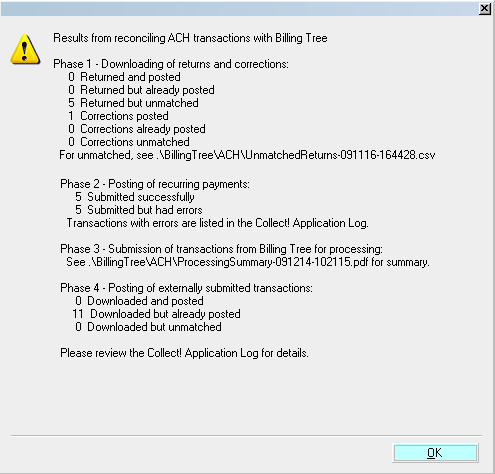
Reconcile ACH History Results
It downloads any external payments (made by debtors at the
ACH Gateway directly and not through your office) that it has
received and which are not posted yet on your system. If
there are any transactions which cannot be matched to a
Collect! file number, it writes an exception report and
stores it in the path "CV11\bin\BillingTree\ACH\UnmatchedExternals".
The file name "UnmatchedExternals" will include a date/time
stamp associated with the download so that each exception
report has a unique file name.
See Reconcile ACH History, topic Unmatched Externals
If you are running an older version of Collect!, you may see the
"UnmatchedExternals" report entitled "UnmatchedReturns".
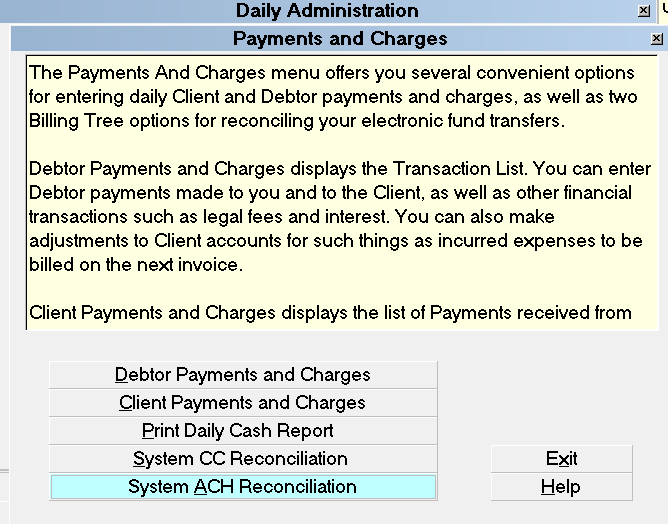
Reconcile ACH History
The process also writes a detailed log into the path
"CV11\bin\BillingTree\ACH\achnow.txt".
The menu path to access the Reconcile batch process is " Daily
Administration\ Payments and Charges\Reconcile ACH History".
See the Help page called Reconcile ACH History for more detailed
information.
 Users of CV11.6.2.7 and higher who are also licensed
for the Scheduler Module now have an enhanced automation
with the addition of the Reconcile process being added
to the Scheduler Task list of options. You may run this
process offline and unattended. Contact us at
sales@collect.org for module pricing.
Users of CV11.6.2.7 and higher who are also licensed
for the Scheduler Module now have an enhanced automation
with the addition of the Reconcile process being added
to the Scheduler Task list of options. You may run this
process offline and unattended. Contact us at
sales@collect.org for module pricing.

Viewing Results
The module does the following tasks as triggered by data or events
related to the reconcile ACH history process:
ACH payments whose payment due dates have come due now are
submitted to Billing Tree.
To recap the initiating event, when you first create a recurring ACH
payment schedule, the module creates a transaction for each payment.
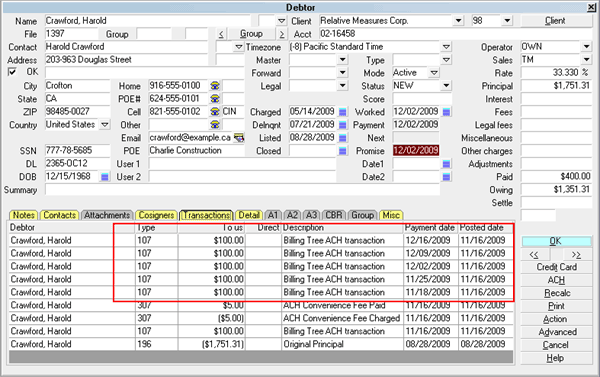
ACH Payment Transactions
The Transaction Detail for these transactions looks like this:
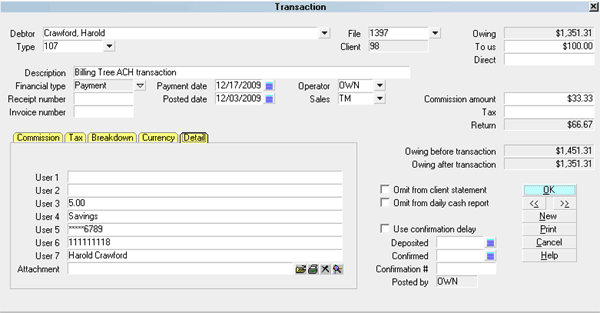
Recurring ACH Payment
The User 2 field of the Transaction Detail
Tab is populated with a unique Reference # that is downloaded
from Billing Tree.
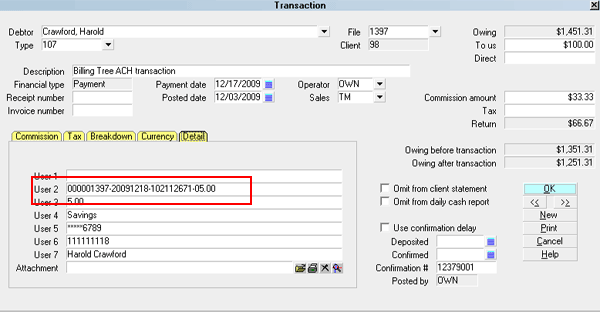
Reference # in User 2
The Confirmation # field in the lower right corner of the
of the Transaction Detail Tab is populated with Billing Tree's
unique Transaction ID.
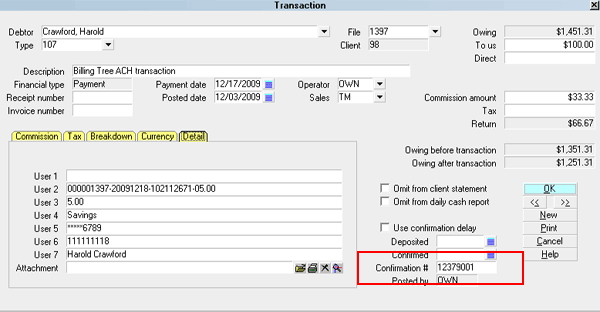
Transaction ID in Confirmation #
If the ACH payment schedule includes a convenience fee,
this transaction will appear posted on the account once
a recurring payment is processed successfully.
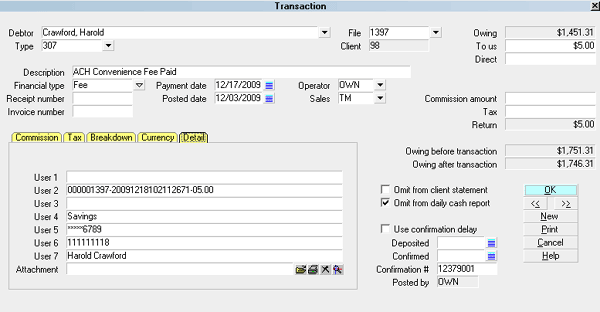
Convenience Fee Transaction
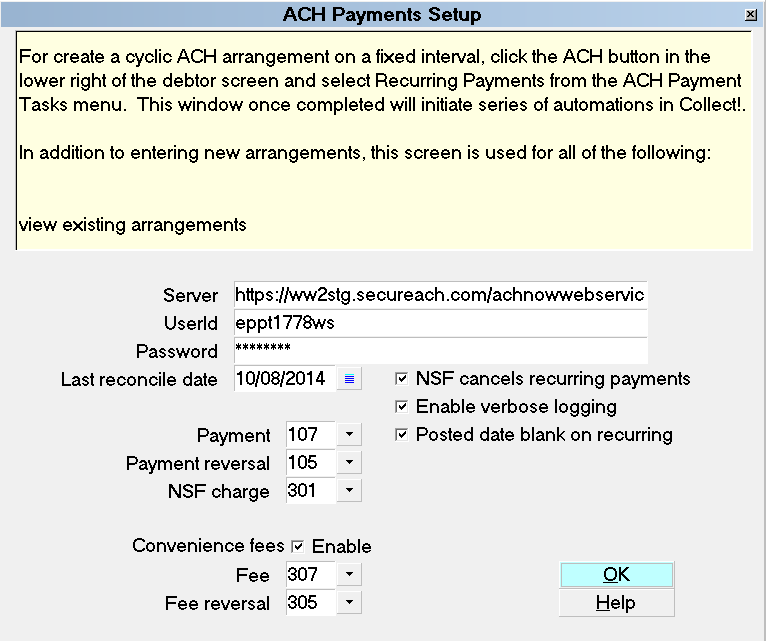
If any previous payments come back as NSF, the system
is triggered to reverses the payment and any convenience fee
charged according to your ACH Setup preferences. Also, depending
on your Transaction Type settings, if you have an NSF
Contact Plan in place on Transaction Type 105,
the actions in that contact plan will be executed on any ACH
reversals as well when you next run your "Process automatic
contacts previously scheduled" in your Daily Batch Processing,
if that includes charging an NSF to the debtor as well, then
you will see the application of that charge after you have
run your " Process automatic contacts previously scheduled"
anytime subsequent to the Reconcile ACH History process.
ACH Payments Setup
If you have the "NSF cancels recurring payments" switch enabled
in your ACH Setup, then receipt of an NSF through the Reconcile
ACH History process will trigger an automatic stop of the schedule
by deleting out all the details of the recurring payments
including deleting EFT Notices.
If any payments have been posted at the Billing Tree
rather than through Collect!, they are also processed when
you reconcile. If they cannot be matched to debtors in your
database, a file is stored with all relevant information so that
you can process the payments as required. It is stored in
the "CV11\bin\BillingTree\ACH\UnmatchedExternals-150519-163821.csv",
where the numeric part of the file name are the date (May 19, 2015)
and the time was HH:MM:SS being 16:38:21 when the exception report
was created.
A processing summary PDF is stored for each reconcile that
you run. It is also stored in the
"CV11\bin\BillingTree\ACH\ProcessingSummary-150519-164459.pdf" folder,
where the date is May 19, 2015 at 16:44:69 time stamp when the file
was downloaded.
It also writes a detailed log into the path
"CV11\bin\BillingTree\ACH\achnow.txt".
Viewing Application Log Entries
If the Reconcile ACH History results reported any errors, these
can be examined in the Application Log, accessed in the menu
path "System\ Diagnostics\Application Log".
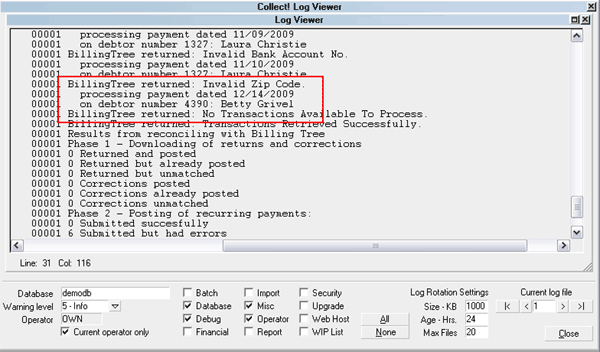
Application Log Entry for Billing Tree ACH Error
Switch ON " Misc" and "Error" in the Collect! Log Viewer settings
to quickly filter the Application Log for Billing Tree
Module entries.
Additionally, the process also writes a detailed log into the path
"CV11\bin\BillingTree\ACH\achnow.txt".
See Also
- Billing Tree Topics
| 
Was this page helpful? Do you have any comments on this document? Can we make it better? If so how may we improve this page.
Please click this link to send us your comments: helpinfo@collect.org