Processing Results From Call Campaigns
The following are the steps necessary to retrieve your completed
call list results from the TCN website.
1. Confirm that you have the three TCN Download Report import maps
in your "File\ Import/Export\ Customize Import/Export\Customize File
Format" menu.
2. Click "Tools\ Batch Processing\ Process TCN Campaign" and then
click the Next button.
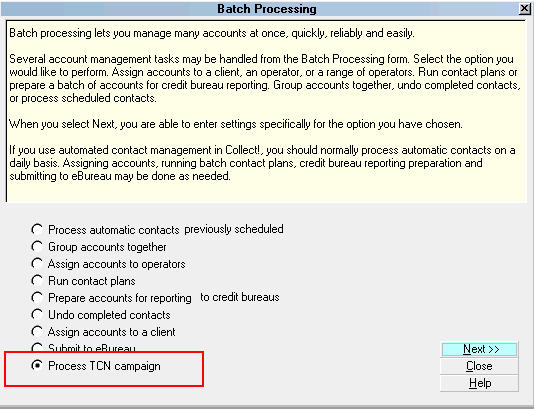
Process TCN Campaign
3. You will see a popup called " TCN Select Function". Click the
radio button beside "Download Report", then the Next button to
advance to the next screen.
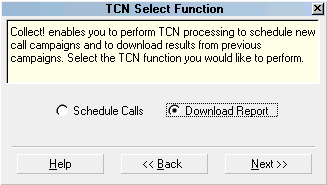
Select Download Report
 You must enter valid data for ALL fields when
the TCN Download Report screen appears.
You must enter valid data for ALL fields when
the TCN Download Report screen appears.
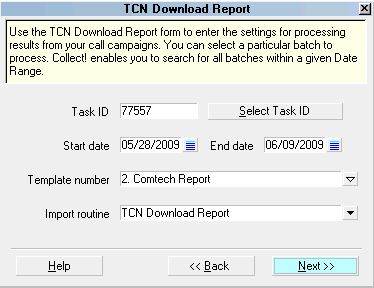
TCN Download Report
4. Input a Task ID or click the Select Task ID button to
choose which completed call list results you wish to download.
The Task ID is the equivalent of TCN's filename for your
call results report. Input your campaign Start and End Dates.
You will see
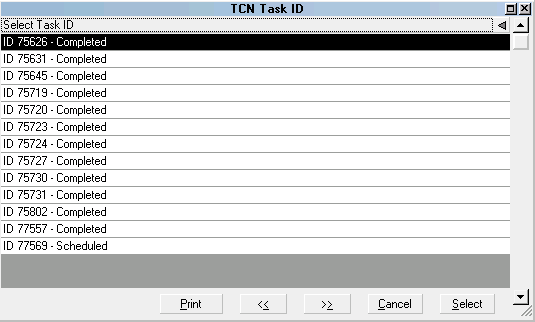
Completed and Running Call Campaigns
5. Select the Template Number. You will notice when you have
the Task ID and Date Range populated, that a drop down arrow
appears on the far right of the Template Number field. The pick
list will display the available templates at the TCN site. These
match the TCN imports in Collect! and are named to help you make
the right choice.
Call Report
This process returns results for EVERY call attempted.
The matching import map in Collect! will write this
information to the Debtor Notes.
Record Report
This process returns results for the LAST attempted call.
The matching import map in Collect! will write this
information to a new Phone Contact and mark it completed.
6. Select the Import Routine from your list of import
maps:
TCN Download Report - Contact creates
a Phone Contact for EACH call result. If you are dialing
many, many thousands of accounts a day, you may opt to
avoid the completed Phone contact event type campaign result
in favor of a noteline. Extremely large Contacts record
counts can have repercussions on other processes which must
read the Contacts file in its entirety in order to extract
necessary information (i.e. monthly credit reporting).
TCN Call Report with Call ID creates
a Phone Contact for EACH call result. This is used
for "Call Report" when TCN is recording your calls.
TCN Download Report - Notes writes a
line to the Debtor's Notes for each call result.
7. Click Next to advance.
If you have entered invalid data in any of the
fields, or leave any of them blank, you will be
prompted to fill in correct information.
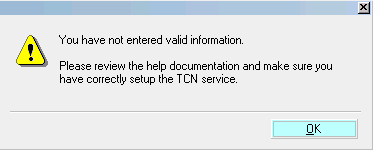
Invalid Information Entered
8. Click the Start button when the TCN Start Process screen appears.
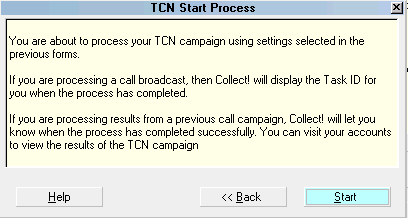
TCN Start Process
The interface will download the results and write them to
the accounts that were in the campaign as per the import
type you selected.
9. When the process has completed successfully, Collect!
displays the Task ID and campaign Date/Time. You can
review your accounts to see the call results on a per file
basis.
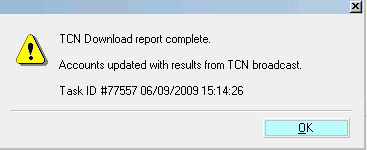
Download Report Complete Message
TCN Phone Contact
By default, the TCN Download Report - Contact creates
a "Completed" Phone contact for each account with
details of the results.
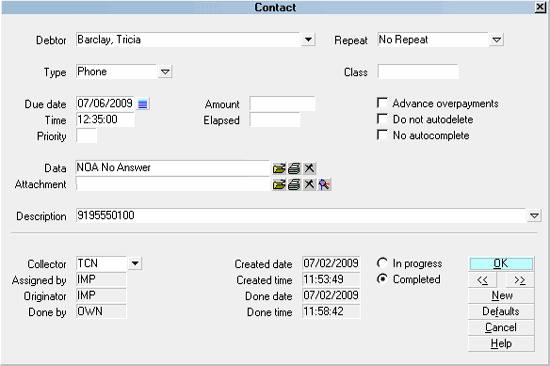
Phone Contact with TCN Results
The Last Number Attempted is written to the Description
field and the Result is written to the Data field. The Due
Date is the Date of the campaign. The Time is the Time
of the phone call. A 'short' call result description is
written to the cell extension field.

TCN Phone Contact With Call ID
If you are receiving Recorded Call WAV files from TCN
Broadcasting, you MUST use the TCN Call Report with Call ID
to store the name of the WAV file in the Phone contact that
Collect! creates when processing your call campaign returns.
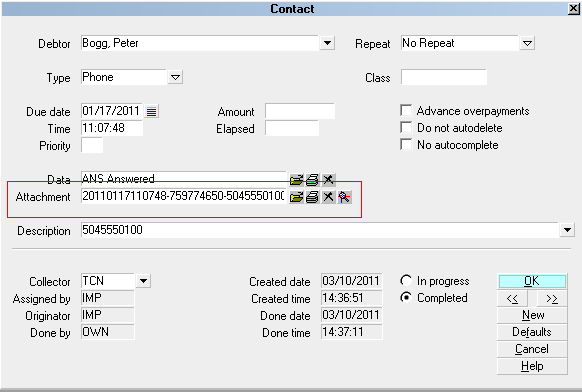
Phone Contact with Call ID
 You can set a global recorded call path in the TCN Setup
screen. This enables you to store all your WAV files
in one folder. Then you can open them from the Phone
contact by selecting the "Open File" icon next to the
Attachment field.
You can set a global recorded call path in the TCN Setup
screen. This enables you to store all your WAV files
in one folder. Then you can open them from the Phone
contact by selecting the "Open File" icon next to the
Attachment field.
For details about calls recorded during your
campaign, refer to the Help topic, TCN Recorded Calls.
TCN Debtor Notes
By default, the TCN Download Report - Notes writes campaign
results to the Debtor Notes for every attempted call.
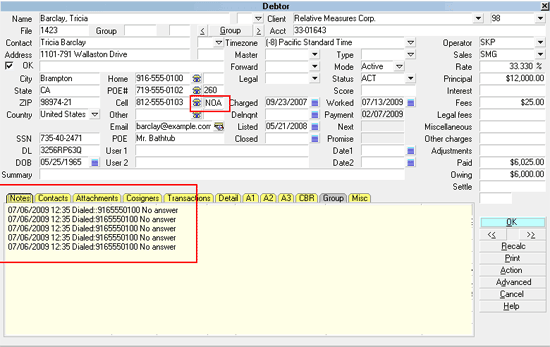
Debtor Notes with TCN Results
A line is written for each attempted call, including Date and
Time of each call, number phoned, and results.
Debtor Flagged By TCN
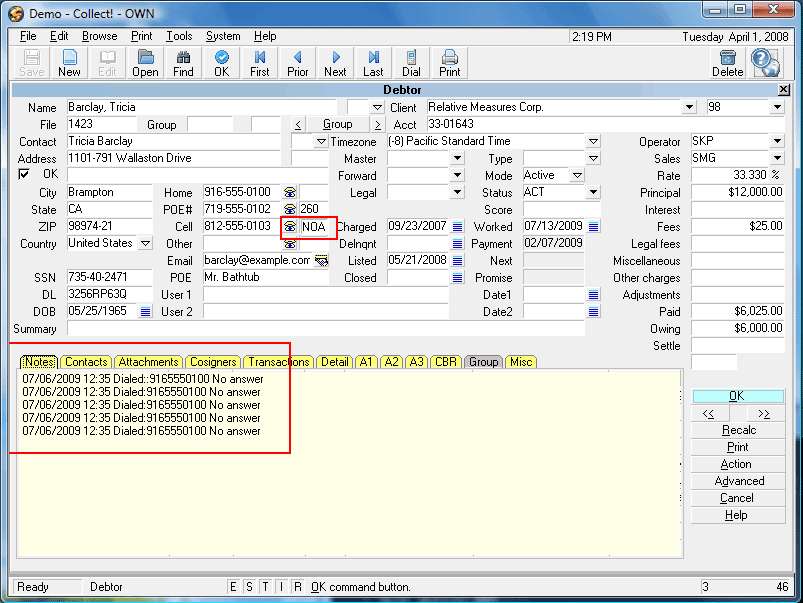
When you process returns from call campaigns, Collect!
updates the Cell Extension field with the TCN result code
for the last attempted call. This may be used as a flag or hook
to extract accounts for further processing, such as sending
them out for a skip tracing scrub.
Debtor Cell Extension with TCN Result Code
Call Campaign Result Codes
TCN returns a result code for each attempted call. The
complete list of results may not be available for every
carrier.
View Result Codes
Diagnostics
Please note that when you select " First Number" when
you schedule calls, TCN will dial ONLY the first number,
even if you send all four phone fields.
TCN processes are logged in Collect!'s Application Log
in the "Batch" section. The Log Viewer is accessible
through the menu path \System\ Diagnostics\Application Log.
Switch ON "Batch" to view TCN log entries, such as Task IDs,
dates, and TCN events.
Information which is logged via "Enable debug
logging" will be logged in the "Debug" section
of the Application Log. Debug logging is enabled
in the TCN Setup screen located by the menu path
\System\ Preferences\TCN Setup.
See Also
- TCN Topics
| 
Was this page helpful? Do you have any comments on this document? Can we make it better? If so how may we improve this page.
Please click this link to send us your comments: helpinfo@collect.org