Using Help
You can access Help anywhere in Collect!.
Press F1 For Context Sensitive Help
Context sensitive help means that the system detects where you
are in the program when you press F1 for Help. It automatically:
* Opens your internet browser,
* Navigates you to our website,
* Opens the Help page that relates to the field or screen from
which you invoked Help, AND
* Takes you to the precise paragraph on that page which
describes the feature you are looking for information about.
This is the best way to learn how Collect! works and obtain
the most direct, pertinent information along with advanced
details and Tips about the features.
 You must have an internet browser installed on
your computer to use the F1 Help function.
You must have an internet browser installed on
your computer to use the F1 Help function.
 You can print from the Help page by clicking File
in the top left corner of your browser and
then following the drop-down menu prompts to print
the page.
You can print from the Help page by clicking File
in the top left corner of your browser and
then following the drop-down menu prompts to print
the page.

Help Page Additional Topics
When you are looking at a Help page, you will notice additional
links to topics along the left-hand side of the page in the blue
column border. There are 3 types of topics, described
below.
1. Detailed Field Information
Select this for Help about fields and buttons on screens.
2. Related Information In Help Pages
Select this for other subject sections in the Help page you
are viewing that relates to the topic you are currently
viewing.
3. Examples And Tutorials
Select this for other Help pages that contain directly
relevant information on the current topic.
Help Windows In Screens
Many screens, primary menu windows and popup message prompts
display an upper inset area containing written information
about the feature or function you are currently viewing.
These aid in learning the system from the ground up and
often provide a needed refresher about use of a feature or
process that is not part of your daily routine.
Popup Help
Whenever you hold your mouse over a field or a button,
this stationary position of your mouse is perceived by
the system as a request for Help. In response, you will
get a color shaded popup window containing information
about the screen or field you are mouse-hovering on.
Within the popup Help box, you will see 2 icons in the
lower right corner of the shaded popup Help message.
The icon shaped like a book is the "View More Help"
button. Click here to be navigated to the Help
page on our website that is relevant to the topic
you are seeking additional information about, OR press
F1 to be taken the same way.
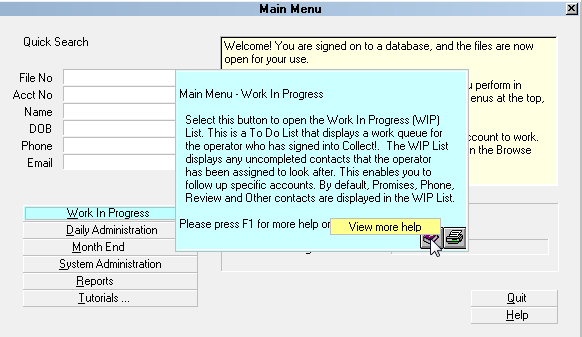
Popup Window View More Help
The "Print" button in the popup help window outputs
the Help topic to your default printer.
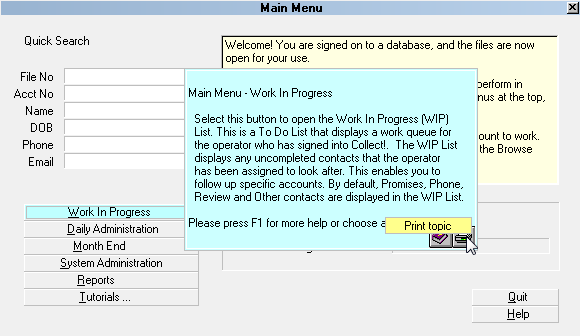
Popup Window Print Help Topic
Help Menu
At the top of the Collect! screen, the word "Help"
appears as a menu choice. The options beneath will
navigate you directly to your choice.
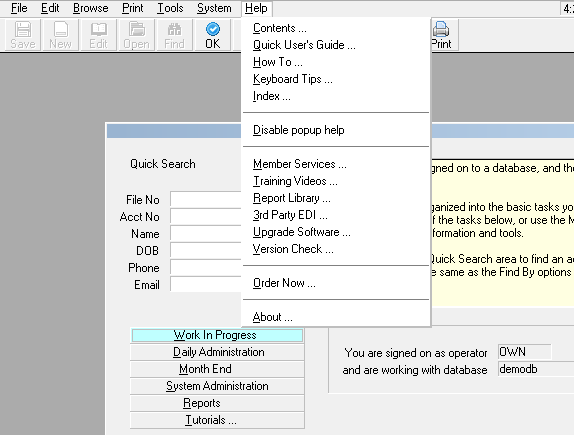
Help Menu
Enable Or Disable Popup Help
Once you are more experienced with Collect!, you may
find that the popup Help function is impeding your
efficiency because a hover no longer means you are
stuck or unsure - you just simply stopped moving your
mouse. You may wish to disable popup Help. There are
2 ways to do this; on a login session-by-session basis
and by disabling it at the Operator Setup level so that
unless changed, you will not get the hover popups at all.
To Disable or Enable popup Help on a per session basis:
At the top of your screen, click Help then scroll down
to "Disable popup help".
If you look again, you will see that the same position
in the drop-down menu now reads "Enable popup help".
This means it will stay off until either you re-enable
it or end your session.
When you end your session, it will return to the default
of Enabled, meaning you will need to turn it off again
next time if you don't want to see the Help popups.
To Disable popup Help at the Operator Setup level:
If you are ready to turn off your hover-mouse Help aid,
this feature can be disabled more directly in the Operator
setup screen. Click \System\ Rights\Operators and enter
the Detail Tab. You will see a check box beside "Disable
popup help". Check that box to turn off the feature
permanently unless the same box is unchecked at a later
date to turn the feature back on.
If you make a change to an Operator setting,
you must logout and login again for the
change to take effect.
Find Help Using The Index
The Index can be accessed from the Help menu or when
you are viewing a Help page in your browser. Click "Help"
at the top of your screen and scroll down to "Index". You
will be navigated from Collect! through your browser to the
Index directory on our website automatically and you will
see the first page of the Index and alphabetical buttons
displayed.
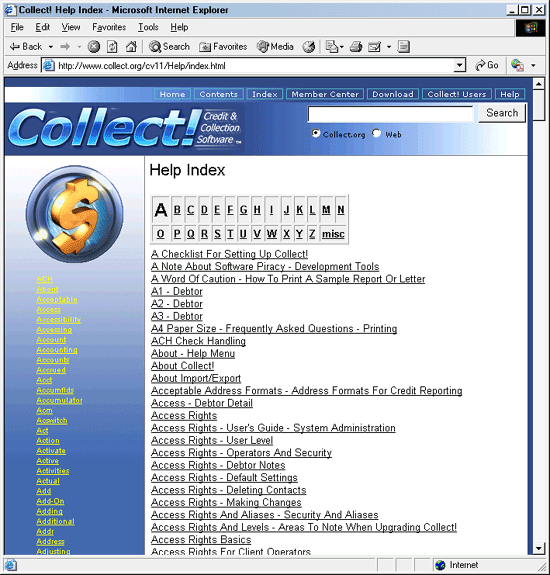
Help Index A
To see the topics filed by first alpha character of the
subject name, click the letter in the Alphabetical display
to be navigated to the topics under that letter.
See Also:
- How To Use The Index For Help
"HOW TO" TOPICS
Click the Help menu at the top of the Collect! screen
and choose How To.
This is a list of all topics that Collect! has help pages for
that show you "How To" use a certain feature or do a
certain procedure.
Help Button
Many screens have a Help button. Pressing this is the same as
pressing F1 for context-sensitive help.
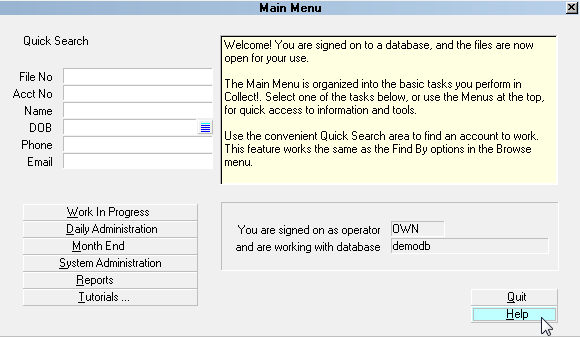
Help Button
Printing Help Pages
Choose the Print command in your browser to output the
contents of the Help topic to your printer.
"SEE ALSO"
When you see a "See Also" section at the bottom of
a Help page, selecting the link(s) offered will automatically
navigate you to the Help page indicated, being a good
additional reference recommended by Technical Services in relation
to the current page you are viewing.
See Also:
- Using the Help System
| 
Was this page helpful? Do you have any comments on this document? Can we make it better? If so how may we improve this page.
Please click this link to send us your comments: helpinfo@collect.org