TCN Select Function
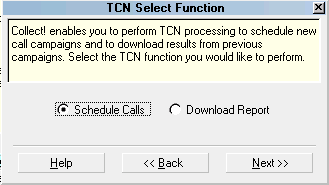
This screen located by the menu path "Tools\Batch
Processing\ Process TCN Campaign is the where you direct
the system to either create a call list to send to TCN or
retrieve campaign call results from TCN. Select the function
you would like to perform by clicking the radio button beside
your choice.
The two functions are labeled as follows:
- Schedule Calls
- Download Report
TCN Select Function
Schedule Calls
Select the Schedule Calls option to generate and
send a call campaign to TCN to be run.
See the Help topic, Scheduling a Call Campaign,
for detailed steps.

Download Report
Select the Download Report option to retrieve your
campaign call results report from TCN.
See the Help topic, Processing Results from Call
Campaigns, for detailed steps.
Help
Select this button for help with the TCN Select Function
screen and links to related topics.
Back
Select this to return to the previous screen.
Next
Select this to proceed with the process.
See Also
- TCN Topics
| 
Was this page helpful? Do you have any comments on this document? Can we make it better? If so how may we improve this page.
Please click this link to send us your comments: helpinfo@collect.org