Home   Contents   Index   Member Center   Download   Collect! Users   Help 
Collect! logo
Collect! logo
 
Collect.org

Collect! Credit and Collection Software™

  Related Information Examples & Tutorials

Update Debtor

Update Debtor enables you to select field data that you want to write to the Debtor record from Alternate Addresses stored in the Attachment form. These may have been created automatically from submitting accounts to eBureau, or you may have created these attachments yourself, manually or through an import.


Update Debtor form

Update Debtor lets you examine all Alternate Addresses before overwriting the current information on the Debtor form. When you do not wish to update the Debtor information automatically, during the eBureau process, Update Debtor gives you a chance to verify the Address, Phone and DOB data in each Alternate Address attachment that eBureau Service creates.

  • You can update only some of the information, if desired, selecting Address and/or Phone and/or DOB taken from the attachment.

  • The old Debtor information is stored in the Alternate Address attachment.

  • You can restore the original data, at any time, with the UNDO option.

  • You can run UPDATE again on any Alternate Address attachment, any time you wish to write different Debtor information to the Debtor form.

  • Any information overwritten is also stored in the Debtor's Notes, provided " Log to Notes" is switched ON for the field in the Debtor form.

Update Debtor Setup

To use Update Debtor effectively, there are a few things you should give attention to before starting.

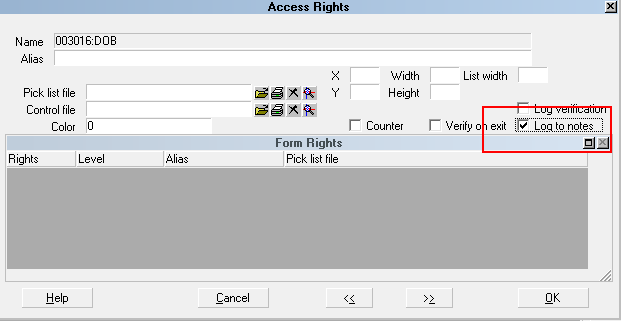
1. When Update Debtor runs, old information is written to the Debtor's Notes. Ensure that " Log to Notes" is switched ON for the Address, Phone and DOB fields in the Debtor form.

TO DO: Right-click on the field and choose Properties. Check mark the "Log to Notes" option.


Log to Notes Enabled

2. Update Debtor expects to find "Alternate Address" in the Attachment Type field. The UPDATE and UNDO buttons are hidden for any other attachment type.


eBureau Alternate Address Attachment

TO DO: Ensure that you have the latest pick lists and attachment control file to use with eBureau.

tip.gif You can download the eBureau pick lists and control file from the Collect! Member Center Widgets area.

Download eBureau pick lists and control file

tip.gif If you are not using eBureau, you can still use the pick lists and control file to ensure that data is entered in the correct fields for using the Update Debtor feature.

Top of page.

Updating Debtor Information

When eBureau returns Alternate Address information, Collect! creates an attachment for each address returned. Alternate Address attachments have two buttons that are not visible in any other attachment type. The last four user fields are greyed out since they are reserved for storing the old address when Update Debtor is run.


eBureau Alternate Address Attachment

tip.gif You can also create Alternate Address attachments yourself if you need to store addresses returned from a different skip tracing service. Just use the same selections from the pick lists as shown in the screenshot so that the UPDATE and UNDO buttons appear. Address, Phone and DOB information must be stored in the same user fields that Collect! uses for eBureau Allternate Address attachments.

Top of page.

Update

Select this button to update the Debtor screen with the information you see in the Alternate Address attachment.

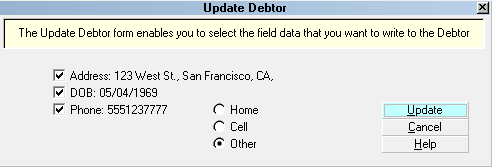
When UPDATE is selected, Collect! displays the Update Debtor form, showing you the new information and letting you select Address and/or Phone and/or DOB to update on the Debtor screen.


Update Debtor form

If you select Phone, Collect! lets you select the Phone field you want to fill with the Phone number displayed in the Update Debtor form.

tip.gif Please examine the data carefully before selecting the UPDATE button. If the Address data is too long to display, Collect! truncates the display only. Update Debtor does write the full address line to the Debtor.


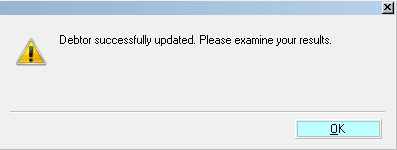
Debtor Information Updated Successfully

After you have successfully updated the Debtor, Collect! stores the original Address, Phone and DOB information in the Alternate Address attachment. This information is READ ONLY as long as the Attachment Type is "Alternate Address."
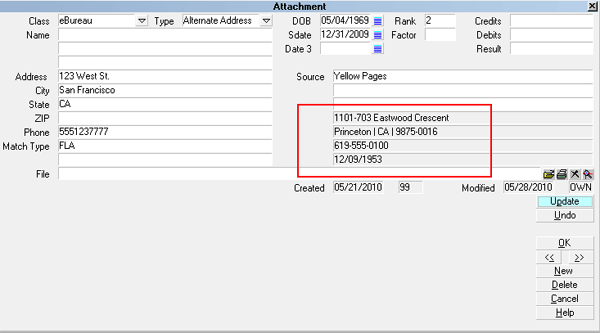

Update Debtor form

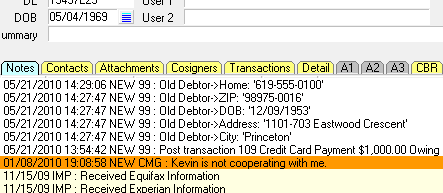
Any overwritten information is also written to the Debtor's Notes, provided you have switched ON " Log to Notes" for the Address, Phone and DOB fields that you are writing to.


Overwritten Information Stored in Debtor Notes

tip.gif The Debtor screen should show all the new information immediately. You can also press the RECALC button to refresh the screen.

At any time, you can select a different Alternate Address from the attachments and run the Update Debtor procedure again.

If you are not satisfied with the results, you can select UNDO at any time to restore the original information stored in the Alternate Address attachment.

Top of page.

Undo

Select this button to restore the original information to the Debtor screen, reversing the update process and writing back to the Debtor, the old information you see stored in the Alternate Address attachment.

When you select UNDO, Collect! displays the information it is about to write to the Debtor.


Original Information to Writeback to Debtor

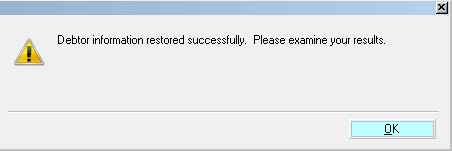
Select YES to write this information to the Debtor screen. Collect! lets you know when the process has completed successfully.


Debtor Information Restored Successfully

Collect! clears out the fields in the Alternate Address attachment. At any time, you can run UPDATE again if you want to use the information in this attachment.

If you decide not to write the information, select NO. Collect! leaves the Debtor alone.


No Changes Made to Debtor Information

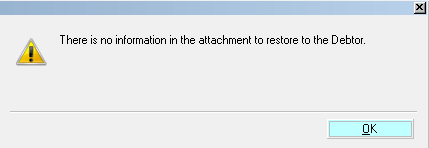
If you try to run UNDO when there is no information to restore, Collect! simply lets you know this.


No Data to Restore

tip.gif The Debtor screen should show all the original information immediately. You can also press the RECALC button to refresh the screen.

Top of page.

Summary

Update Debtor enables you to select field data that you want to write to the Debtor record from Alternate Addresses stored in the Attachment form. This lets you examine all Alternate Addresses before overwriting the current information on the Debtor form.

You can select Address and/or Phone and/or DOB data to overwrite. Old data is stored in the attachment and may be restored at any time. Overwritten information is also stored in the Debtor's Notes, provided the "Log to Notes" switch in ON for the fields you are writing to.

Top of page.

See Also

- eBureau Service

Top of page.

Was this page helpful? Do you have any comments on this document? Can we make it better? If so how may we improve this help page.

Please click this link to send us your comments: helpinfo@collect.org
© 2012 Comtech Systems Inc. * Email: info@collect.org * Web: www.collect.org * Voice: 1-800-661-6722, 250-391-0466