WIP Reload Filters Basics
The WIP Reload Filters is where you control the types
of Contacts and volumes of the same that are to be loaded
into your WIP list. The menu path to this screen is from
any WIP list, click Reload then click Reload WIP Filters.
Promise, Phone, Review and Other are Contact Types which are
loaded into WIPs by default. You can choose specific Contact
types or All types. Depending on your office, either choice
could considerably increase or decrease the WIP List size.
If your company has large volumes of Letters, Credit Bureau
Reporting Files and other types of Administrative Contacts which
may exist as In Progress on the accounts, we'd recommend using
the Load Selected Types option as the first filter, then
select the contact Types that revolve around the work the
Collector needs to do.
With Junior Collectors, you might find their learning curve
and workstandard habits are easier to sculpt if you give them
a fixed order of operations that they are to work their Accounts:
Promise, then Phone, then Review, then Other. In Statuses: NEW,
then HOT, then ACT, then SKP or TRC (trace). With special
instruction for what times of day are primetime and which
Contact Types/statuses you want them working during primetime.
In all combinations/permutations, there is also the Priority
hierarchy of High/Medium/Low, and this additional parameter
can be used in the workplan triage of accounts being worked
either with filters or more simply, by sorting the sub-WIP
with the target Types and Statuses in ascending or descending
order in the Priority column of the To Do List.
You can control how far ahead your Collectors can
access scheduled accounts with future work dates with
the Look Ahead Days filter and you can control how
many files they can load into a WIP list at any given
time with the Load Maximum switch.
Summarily, the WIP Reload Filters screen helps you
keep the Collectors focused on the accounts you want
them working by allowing strategic sorting and
sub-WIP expression of the inventory on their desks.
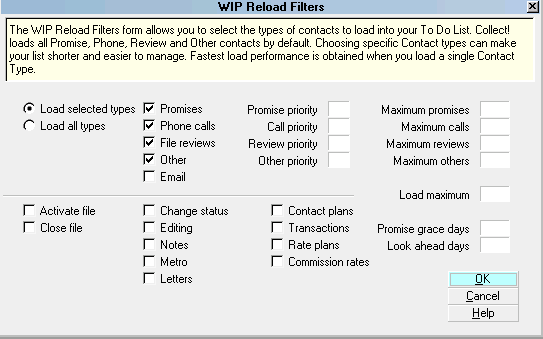
WIP Reload Filters Screen
 Selected Contact Types will be used as defaults
when Collect! searches for pending contacts
if you have enabled Schedule Next Contact
functionality.
Selected Contact Types will be used as defaults
when Collect! searches for pending contacts
if you have enabled Schedule Next Contact
functionality.
Accessing WIP Reload Filters
The WIP Reload Filters screen may be accessed 4 different
ways. Which you choose will depend on the user Level and
personal navigating preferences..
- Using the menu bar at the top of the screen,
\System\Preferences\Plans and Reference Tables\WIP
Options\WIP Filters and the screen labeled WIP Reload
Filters will appear.
- From the Main Menu, click \System Administration\Setup
and Configuration\Plans and Reference Tables\WIP Options\
WIP Filters and the WIP Reload Filter screen will be displayed.
- From the Main Menu, click Work In Progress then click
the Reload button. This will open the Reload Work In
Progress window and the WIP Reload Filters button is in the
upper right corner.
- From the inside of any Contact event screen, you can click
the Defaults button in the lower right corner which will popup
the WIP Options window. Then select the WIP Filters button just
beneath the OK button in the lower right corner and the WIP
Reload Filters screen will open.

See Also
- WIP Reload Filters
| 
Was this page helpful? Do you have any comments on this document? Can we make it better? If so how may we improve this page.
Please click this link to send us your comments: helpinfo@collect.org