Entering License
When you have purchased Collect! or have added new features
or additional users to your system, Comtech Systems will
send you a new License Code by email, fax or phone. This
new License Code must be entered to activate your new
registration or to activate the changes that you have added.
 This information is addressed to Owners or
System Administrators. Other users should
not have access to license-entering procedures.
This information is addressed to Owners or
System Administrators. Other users should
not have access to license-entering procedures.
Preparing To Enter Your License
Your License Code must be entered from your Server station.
This is the computer on which your Collect! system is actually
installed on. In a networked environment, this means you
should not attempt a licensing from a workstation. The
code picks up your machine ID and this must remain consistent
or else the license will be rejected.
Your License Code must be entered on the same date that
the License Code was issued to you. This is the date
recorded in the fax, email or phone call that you received.
Your License Code must be entered in your active working
database. To be sure that you are entering your
license in the correct location, please sign into Collect! at
the Server, using the Desktop icon that was installed when
you installed Collect!
To make sure you are signed in to the correct location, using
the menu bar at the top of Collect! select Help to display the
dropdown menu. Select About from this menu. Confirm that the
db path: displayed at the bottom of this screen
is the location of your active working database.
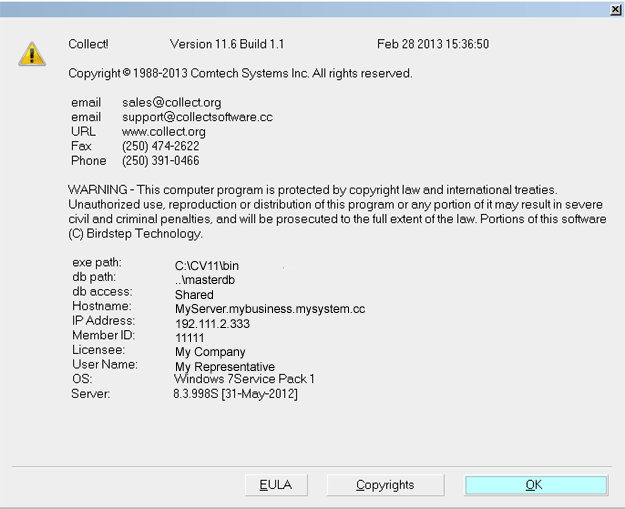
About Collect!
Examples:
C:\CV11\bin\CV11.exe
You can enter a license.
C:\CV11client\bin\CV11.exe
You cannot enter a license here. This is the Client install.
\\server\CV11\bin\CV11.exe
You cannot enter a license here. You are on a Workstation.
X:\bin\CV11.exe (X: is a mapped drive)
You cannot enter a license here. You are on a Workstation.

Accessing License Information
The License Code is entered from the License Information
screen.
Start Collect! and stop at the Welcome To Collect!
screen. Select the button labeled License to open the
License Information window. If Collect! opened bypassing the
Welcome To Collect! screen, please refer to Help
topic, Troubleshooting License.
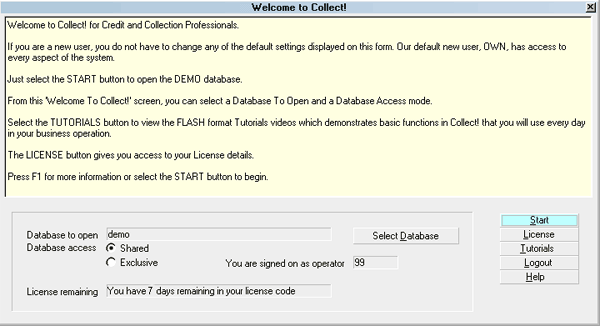
License Button
You will be at the License Information screen as
displayed below.
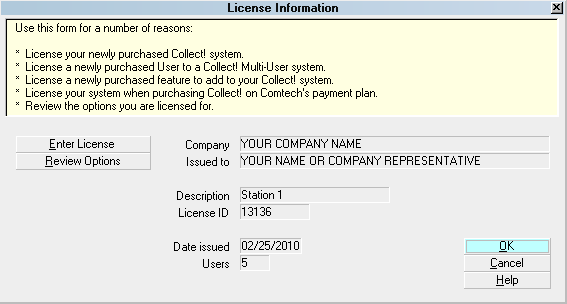
License Information Screen
The License Information screen displays the details of
your software registration. You will return to this
information later on to check its accuracy.
Entering License
Step 1 is optional, but recommended.
1. Get all users out of Collect! and go to the computer with
Collect! installed on it (your server). Shut down the Collect!
Server (Black DOS Window / RDS Server). Start the CV11
Server back up again, and open Collect!, stopping at
the Welcome to Collect! screen.
2. Select the button labeled Enter License.
This will display a large box where you will enter your new
License Code. The box also displays the system date.
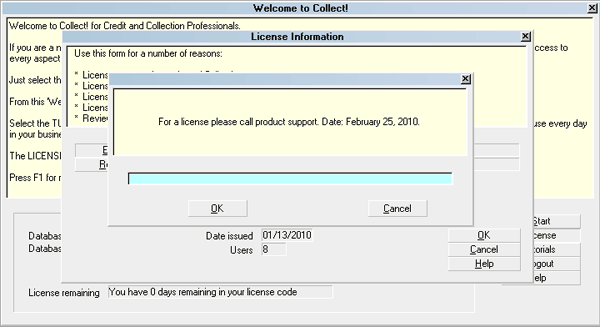
Enter License Code prompt
Before entering the License Code, make
sure your computer System Date is the same
date as the date the License Code is issued for.
The date of the email, fax or phone call
that contained your License Code must match the
date that displays in the prompt. Please see
the example above.
3. Carefully enter your EXACT License Code. The easiest way
to ensure accurate transport of these codes which can be quite
long, is to copy/paste using Ctrl+C to copy and Ctrl+V to paste.
Please watch for the placement of numbers and characters in the
License Code. Notice that zeros and O's look very similar.
Also, I's are similar to 1's.
4. After checking your completed entry carefully, select OK.
After you select OK, you may possibly be notified
if there were any errors entering your license.
Please refer to Troubleshooting License to find
out how to correct the issue. If your code has been
accepted, you will proceed to the next step.
5. Company Name
If your License Code has been accepted, you will be
presented with a box in which to enter your Company
Name. This is required to proceed. The information you
enter will be displayed in the License Information
screen. Select OK when you are finished.
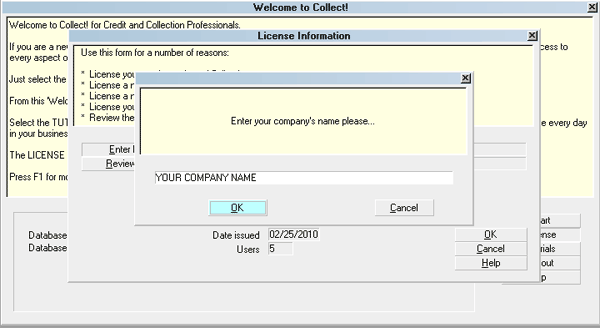
Enter Company Name prompt
6. Your Name. Next, you will be presented
with a box where you will enter your Name. This is required
to proceed. It is usually the company owner or contact person.
The information you enter will be displayed in the
License Information screen. Select OK when you are finished.
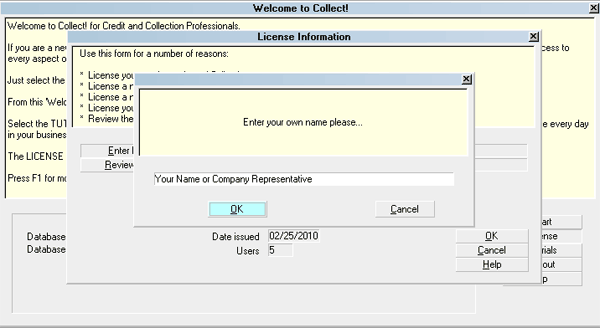
Enter Your Name prompt
Verification Code
When we issue your annual license, you will also require a
verification code to complete the licensing process. After
you enter your license code successfully, you will be shown
a message with your machine ID number. This is a network
card or an OEM number. Please phone or email this
machine ID number to Comtech Systems and we will give
you a verification code to complete entering your license.
Enter the verification code exactly and select OK to complete
the licensing process. If you enter the verification code
incorrectly, select OK and you will be prompted to enter
it again.
For security purposes, we may also require a
verification code in other circumstances,
such as unusually frequent requests for
a license.
License Recorded
If you skipped step 1, or entered the license with users in
the system, Collect! will prompt you to restart your server.
This is in reference to the CV11 RDS Server. You can select
'no' and do the restart after everyone is off of the system.
At this point, Collect! has all this information needed and
you will see the License Recorded message.
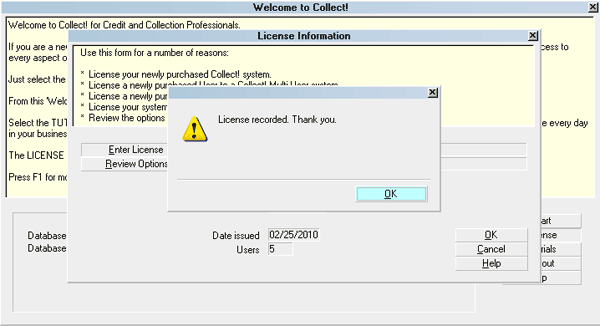
License Recorded
Select OK to return to the License Information screen.
Verify License Information
Check that the information entered in the License Information
window is accurate. Check that you are licensed for the correct
number of users.
License Information form
Review Options.
At this point, it is recommended that you review the options
that you are licensed for. To do this, when you are in the
License Information screen, select the button
labeled Review Options. The
Collect! Features window will appear. Please make sure that
the options you have purchased are checked.
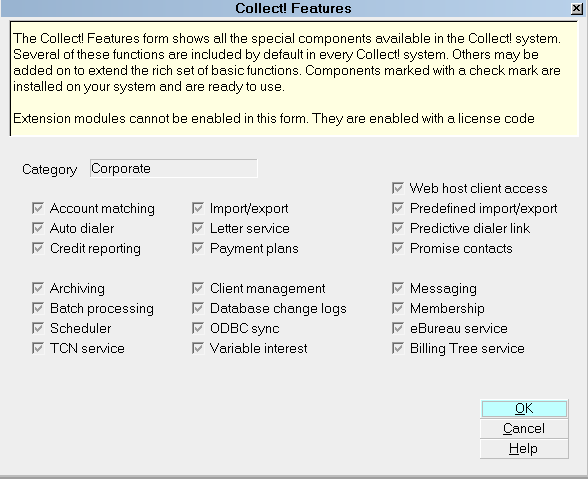
Collect! Features form
*** IMPORTANT *** If you disagree with any of the information
that is registered for you, please call Comtech Systems Inc.
without delay at 250-391-0466.
Select OK to close the Collect! Features screen. Select OK to
close the License Information screen. You can now sign into
Collect! to take advantage of any new features or Users you
may have requested.
Troubleshooting
If you encountered any difficulties entering your license,
please refer to Troubleshooting License.
See Also
- License Topics
| 
Was this page helpful? Do you have any comments on this document? Can we make it better? If so how may we improve this page.
Please click this link to send us your comments: helpinfo@collect.org