Credit Card Payment Tasks
The Credit Card Payment Tasks menu is where you choose to
set up individual or recurring credit card payments.
It is also possible to Reconcile an individual debtor with
processed/approved credit card transactions that have been
confirmed at Billing Tree if there is a need to bring an
individual's history up-to-date separate from the daily batch
reconciliation.
Before you use the options in this menu, ensure that you have
set your preferences in the Credit Card Payments Setup
screen and that you have enabled each client in their Advanced Settings
window if there is to be any charging of credit card convenience
fees in any region where it is permissible by law for you to do
so AND you have designated on a per client basis whether this
fee is permitted.
To access the Credit Card Payment Tasks menu, select the
CREDIT CARD button in the lower right corner on the main
Debtor screen.
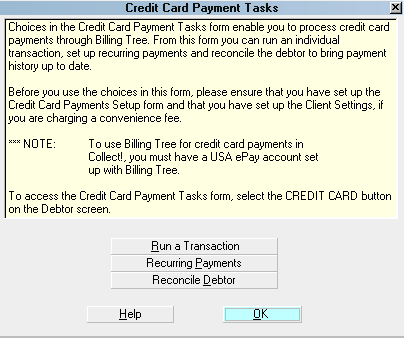
Credit Card Payment Tasks
Run A Transaction
Select this option to post an individual
credit card transaction. The Single Credit
Card Transaction screen will be displayed.
You can enter a new address, enter all the
credit card information, elect to charge a
convenience fee and save the information you
have entered. The credit card transaction
will be submitted immediately for processing
by Billing Tree.
After you have successfully processed a single
credit card payment, you can view the resulting
transaction posted in your Transaction Tab.

Recurring Payments
Choose this option to enter a recurring
payment schedule, view an an existing
schedule already set up or to delete an
existing recurring schedule.
Recurring Credit Card Payments are not
auto-posted into the debtor Transaction Tab
like recurring ACH. The entire schedule is
uploaded to Billing Tree and stored there. As
payments become due, the "Reconcile Credit
Card History" process will download processed
credit cards and you will see them in your
Transaction Tab the day after they became
due to be processed.
Reconcile Debtor
Click this button if you are attempting to
Reconcile all payments available for download
for a specific debtor ONLY. This process will
update your file with any outstanding
transactions which have not been applied in
Collect!.
This process does not reconcile any other
account besides the debtor file you are
currently on. It is the batch Reconcile
process which is used to download all debtor
transactions to be applied as payments or
chargebacks.
Help
Select the HELP button for Help on the
Credit Card Payment Tasks menu and
related topics.
OK
Select the OK button to close this menu.
See Also
- Billing Tree Topics
| 
Was this page helpful? Do you have any comments on this document? Can we make it better? If so how may we improve this page.
Please click this link to send us your comments: helpinfo@collect.org