Command Line Startup Options
To use command line arguments, either use the Run command
from the Start menu, or create an icon for the program, and
change the options in the shortcut.
This is a very useful feature of Collect! if you and your
operators work on the same machine all the time.
You can set up these shortcuts for different operators and they
will each be able to start Collect! with their own customized
variations of logging into a Collect! database.
Collect! command line arguments:
| Argument | Use |
Applies To CV11 | Applies To
Web Host |
| /db{database} | Path to database. (e.g. /dbmasterdb) |
X | X |
| /a{file} | Startup using macro file {file} |
X | |
| /b | Beep sounds off |
X | |
| /c{filename} | Enable Flex Screen{Use this INI instead of uidefault.ini} |
X | |
| /d | Enable internal checks |
X | |
| /dl | Disable locale |
X | |
| /e | Error beep OFF |
X | |
| /fnn | Use font size indicated by {nn} for Collect! display. |
X | X |
| /h | Turn off the progress graph in the status bar at the
bottom of the Collect! window |
X | X |
| /i{ID} | User's ID. If ID and password are set then sign on |
X | X |
| /m | Allow multiple instances of the program to run at one time |
X | X |
| /n | Don't remove my ID from netbios name table on exit |
X | |
| /p{pwd} | Password. If ID and password are set then sign on |
X | X |
| /q | User cannot exit from Collect!
(except User levels 1 and 99) |
X | |
| /s | Skip the Signon form, prompt for ID and password |
X | |
| /sch:{filename.sch} | Load this Scheduler Tasks file when starting Collect! |
X | |
| /v | Verbose. Frequent messages ON |
X | |
| /z | Turns ON DDE. Used with Merge Documents
and also with Predictive Dialer |
X | |
| /Snn | Causes Collect! to listen on port nn |
| X |
| /W1ss | Puts Collect! into HTTPs secure web server mode
using Collect!'s internal SSL handling using SSL2.3. See "SSL Encryption" below
for additional options. |
| /W1ss0 | Puts Collect! into HTTPs secure web server mode
using Collect!'s internal SSL handling using SSL3.0. See "SSL Encryption" below
for additional options. |
| /W1ss1 | Puts Collect! into HTTPs secure web server mode
using Collect!'s internal SSL handling using SSL2.0. See "SSL Encryption" below
for additional options. |
| /W1ss1 | Puts Collect! into HTTPs secure web server mode
using Collect!'s internal SSL handling using SSL2.3. See "SSL Encryption" below
for additional options. |
| /W1ss3 | Puts Collect! into HTTPs secure web server mode
using Collect!'s internal SSL handling using TLS1.0. See "SSL Encryption" below
for additional options. |
| /W1ss4 | Puts Collect! into HTTPs secure web server mode
using Collect!'s internal SSL handling using DTLS1.0. See "SSL Encryption" below
for additional options. |
| /W1ss5 | Puts Collect! into HTTPs secure web server mode
using Collect!'s internal SSL handling using TLS1.1. See "SSL Encryption" below
for additional options. |
| /W1ss6 | Puts Collect! into HTTPs secure web server mode
using Collect!'s internal SSL handling using TLS1.2. See "SSL Encryption" below
for additional options. |
| X |
| /W1s | Puts Collect! into HTTPs secure web server mode
when using a third party SSL tool. |
| X |
| /W1 | Puts Collect! into HTTP web server mode - not secure. |
| X |
| /Wt1ss | Starts Web Host in "test mode" with all menus
enabled. Collect!'s internal SSL handling uses SSL2.3. |
| X |
| /Wt1s | Starts Web Host in "test mode" with all menus
enabled when using a third party SSL tool. |
| X |
| /Wt1 | Starts Web Host in "test mode" with all menus
enabled - not secure. |
| X |
| /W2ss | Puts Collect! into HTTPS listening mode for
receiving requests from your VoIP and IP-PBX dialing systems. Used with Predictive Dialer. |
| |
| /W2 | Puts Collect! into HTTP listening mode for
receiving requests from your VoIP and IP-PBX dialing systems. Used with Predictive Dialer. |
| /W2sstext | Puts Collect! into HTTPS listening mode for
receiving requests from your VoIP and IP-PBX dialing systems with
special string "text" passed in the URL. Used with Predictive Dialer. |
| |
| /W2text | Puts Collect! into HTTP listening mode for
receiving requests from your VoIP and IP-PBX dialing systems with
special string "text" passed in the URL. Used with Predictive Dialer. |
| |
| /W2ssfile | Puts Collect! into HTTPS listening mode for
receiving requests from your VoIP and IP-PBX dialing systems with
Debtor File Number passed in the URL. Used with Predictive Dialer. |
| |
| /W2file | Puts Collect! into HTTP listening mode for
receiving requests from your VoIP and IP-PBX dialing systems with
Debtor File Number passed in the URL. Used with Predictive Dialer. |
| |
| /W3 | Causes Web Host to bypass system password authentication.
This is used for real time updates via XML while using Web Predictive Dialer.
This may be limited to Trusted Hosts for security. |
| X |
| /whl | Enables Web Host packet logging.
This is for advanced developer troubleshooting.
This will generate a text file, "webhostpacketlog.txt," in your CV11\bin folder.
It will also prevent the deletion of the temporary CSV files used by XML Data Pump. |
| X |
| /ynn | Causes Web Host to use Port nn for secure mode (HTTPS) |
| X |
| /Thh:mm | Causes the CV11 program to terminate at that time of day.
This is useful for backups and scheduled maintenance tasks.
This shuts down the Collect! instance but NOT the CV11 Server. | X |
X |
| /xmm | Causes the CV11 program to terminate after {mm} minutes.
This closes only the particular Collect! instance. | X |
X |
| /? | Show this list |
X | |
Examples
1. C:\CV11\bin\CV11.exe /iUser1 /ppassword1 /m /q /dbmasterdb
Sign directly into masterdb database
using ID User1 and Password password1.
Allow multiple instances of CV11.exe to be started. Do not allow users to exit
from Collect!.
 When specifying a database to sign into, Collect! hides the
SELECT DATABASE button in the Welcome To Collect! screen. With
a User ID and Password specified, as in the example above, the
Welcome To Collect! screen is bypassed altogether.
When specifying a database to sign into, Collect! hides the
SELECT DATABASE button in the Welcome To Collect! screen. With
a User ID and Password specified, as in the example above, the
Welcome To Collect! screen is bypassed altogether.
2. C:\CV11\bin\CV11.exe /S80 /W1ss /y443
Web Data Entry secure mode
3. C:\CV11\bin\CV11.exe /T1:30
Shut down Collect! at 1:30 AM (Uses 24 hour clock). This shuts
down only the instance of Collect! on the workstation. It does not
shut down the CV11 server.
4. C:\CV11\bin\CV11.exe /x30
Shut down Collect! after 30 minutes of inactivity. This shuts down
only the instance of Collect! on the workstation. This does not
work with Web Host or the Scheduler.
 This is useful if you want user specific settings. If
you want a global setting that applies to all users and
all Collect! databases, please use Auto Log Out After,
which is set in Database Preferences.
This is useful if you want user specific settings. If
you want a global setting that applies to all users and
all Collect! databases, please use Auto Log Out After,
which is set in Database Preferences.
5. C:\CV11\bin\CV11.exe /dl
Disable Locale
6. C:\CV11\bin\CV11.exe /sch:demo.sch
Load the Scheduler Tasks file named demo.sch
when Collect! starts.
You must have already saved a Scheduler Tasks file if
you want to use it in this command line argument.
The /sch setting takes precedence over
any file specified in the Scheduler Settings "Default scheduler
task file."
You can also display this table of command line options
by using the /? option. This will display the list to the screen. You
will have to remove this option to enter Collect! normally.

Collect! Screen Display Size
The Flex Screen feature automatically expands Collect!'s screen
to fit the monitor you are viewing. Command line startup option
/c enables you to call a different INI file if
you want to customize Flex Screen or adjust the default settings
for a particular workstation.
Example:
C:\CV11\bin\CV11.exe /c
Use the settings in the uidefault.ini to set
the Collect! screen dimensions. This default INI is shipped
with Collect! and must be located in your CV11\bin folder.
Used by itself, this command is just like Collect!'s
default behavior. It just looks for the uidefault.ini
in the CV11\bin. But, if you specify a different INI, Collect!
will read that for all the Flex Screen settings.
C:\CV11\bin\CV11.exe /cmyui.ini
Use the settings in myui.ini to set the
Collect! screen dimensions. The specified INI file must be
located in your CV11\bin folder
Please refer to Help topic, Flex Screen for details.
Collect! Font Size
With this command, larger numbers display a larger font size
and larger Collect! windows. Smaller numbers display a smaller
font size and smaller Collect! windows.
Example:
C:\CV11\bin\CV11.exe /f16
Start Collect! with 16 pt font size for display.
For resizing Collect!, the /c option
should be used instead of /f in most cases.
It is more comprehensive, enables more customization and
generally gives better results.
Disable Locale
Upper and lowercase case functions in importing respond to the
user's Regional Settings in Windows to be able to work with
foreign languages better. Collect! automatically sets the Locale
internally, given the language code returned from the operating
system. This allows converting language characters to upper
case during the import process.
To turn OFF this feature the command line switch /dl
must be used.
Web Host Packet Logging
This option, /whl, is used for
troubleshooting transmission of Web Host data.
This will also prevent the deletion of the CSV files that
Collect! uses for XML Data Pump.
Example:
C:\CV11\bin\CV11.exe /S80 /W3 /y443 /whl
Web Host Packet Logging Enabled
This will generate a text file in your CV11\bin folder,
i.e. "webhostpacketlog.txt." This is for advanced developer
troubleshooting. This file can be used to reproduce HTTP
headers and payload content, for instance in XML data
pump troubleshooting.
This will also allow you to log SSL encrypted
sessions too, since Collect! writes to these files after
the decryption phase.
Web Predictive Dialer
The /w2 option starts Collect! in Web Dialer Server
mode.
/s80 /w2Starts the Web Dialer Server on port 80.
/s80 /w2ssstarts the Secure Web Dialer Server
on port 80.
These arguments are used with Predictive Dialer to receive
HTTP and HTTPS requests. Please refer to Help topic,
Web Predictive Dialer for details.
SSL Encryption For Web Host
Collect! supports all common encryption methods. To enable a
specific encryption method, you can simply use one of the
following arguments in the Web Host shortcut.
| /w1s ARG | /w1ss ARG | ENCRYPTION METHOD |
| /w1s | /w1ss | SSL2.3 |
| /w1s0 | /w1ss0 | SSL3.0 |
| /w1s1 | /w1ss1 | SSL2.0 |
| /w1s2 | /w1ss2 | SSL2.3 |
| /w1s3 | /w1ss3 | TLS1.0 |
| /w1s4 | /w1ss4 | DTLS1.0 |
| /w1s5 | /w1ss5 | TLS1.1 |
| /w1s6 | /w1ss6 | TLS1.2 |
Example:
C:\CV11\bin\CV11.exe /W1ss2 /S80 /y443 /m
When you open the Web Host, the read-only "Security"
field displays the encryption method Web Host is currently using.
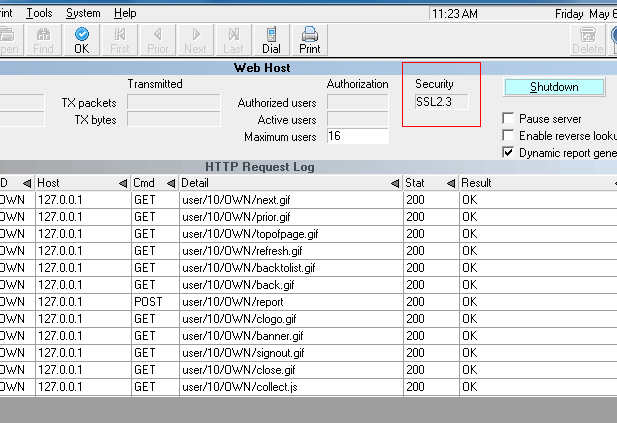
Collect! Web Host using SSL2.3 Encryption
It is recommended that your Internet browser encryption
method setting matches the encryption level you are using for
Web Host.
Web Host Test Mode
When Collect! is started in Web Host mode, menus are disabled.
They can be re-enabled by signing in as User Level 99.
As a command line argument, the letter 't' is also available if
you want to start the Web Host in "test mode" based on the
current user level rights. For example, /wt1s or /wt1ss will start
up Web Host in test mode with all menus enabled.
See Also
- Introduction To Sign On
| 
Was this page helpful? Do you have any comments on this document? Can we make it better? If so how may we improve this page.
Please click this link to send us your comments: helpinfo@collect.org