Billing Tree Setup
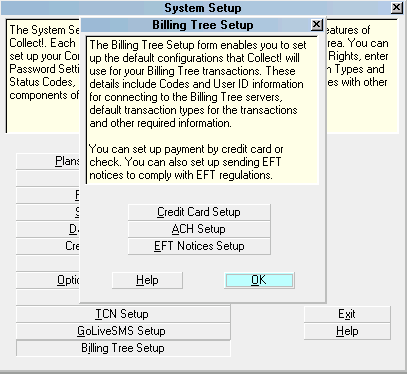
The Billing Tree Setup window is accessed via the menu
path "System\ Preferences\Billing Tree Setup". This screen
is where you set up the configurations that the module
will use for your connectivity and default company
preferences. These details include login credentials that
the module needs to connect to the Billing Tree Gateways and
the default transaction types, convenience fee and other
preferences that the module will use.
You have separate setup windows for credit cards or ACH
payments. ACH payments are for debits coming from
someone's checking or savings bank account. These are
possible because the debtor provides their banking information
to you with their verbal authorization to withdraw
a payment electronically. You can also set up
sending EFT Notices to comply with EFT regulations.
Billing Tree Setup
Additional settings enable you to control charging convenience
fees, enabling debug logging and setting how to handle
NSFs for recurring payments.
 It is recommended to check the box beside
"Enable verbose logging" in the Credit Card and
ACH Setup windows. This Collect!-to-Billing Tree
logging will be vital in assisting you if there are
any system-to-system issues requiring technical assistance
from either Comtech or Billing Tree.
It is recommended to check the box beside
"Enable verbose logging" in the Credit Card and
ACH Setup windows. This Collect!-to-Billing Tree
logging will be vital in assisting you if there are
any system-to-system issues requiring technical assistance
from either Comtech or Billing Tree.
Setup areas include:
Press F1 in any field in any of the
setup windows for greater detail about the
fields and the function they serve.
Credit Card Setup
Select the CREDIT CARD SETUP button to
configure your settings. This is where you
enter your login credentials to the Billing Tree
Credit Card Gateway and also set your company
preferences for how you want the module to
function with respect to credit card payment
handling within your company.

ACH Setup
Select the ACH SETUP button to configure your
settings. This is where you enter your login
credentials to the Billing Tree ACH Gateway
and also set your company preferences for how
you want the module to function with respect
to ACH payment handling within your company.
EFT Notices Setup
Select the EFT NOTICES SETUP button to
select the letters that you wish to use
for your recurring credit card and/or
ACH payments. You can also configure the
days prior to payment for sending out the
notices.
Help
Select the HELP button for help on the
Billing Tree Setup window and related topics.
OK
Select the OK button to close the Setup
window.
See Also
- Billing Tree Topics
| 
Was this page helpful? Do you have any comments on this document? Can we make it better? If so how may we improve this page.
Please click this link to send us your comments: helpinfo@collect.org