ACH Payment Tasks
ACH Payment Tasks
Choices in the ACH Payment Tasks window enable you to
set up single or recurring ACH payments.
Before you use the choices in this menu, ensure that
you have filled out the ACH Payments Setup window and
that you have enabled ACH Convenience Fees in your
individual Client Advanced Settings screens, if you
are charging a convenience fee. Additionally, you will
need to define a fixed fee amount that is to be charged
in your Transaction Type setup menu. The module will not
allow a percentage fee type to be utilized.
To access the ACH Payment Tasks window, select the ACH
button in the lower right corner on the main Debtor screen.
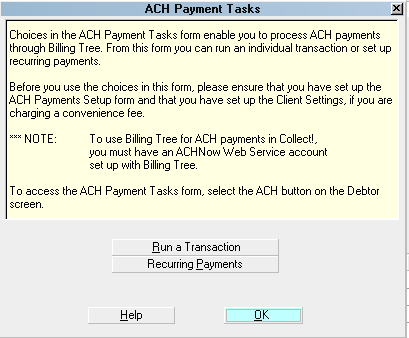
ACH Payment Tasks

Run A Transaction
Select this option to post an individual
ACH transaction. The Single ACH Transaction
screen will be displayed. Some of the
fields will be auto-filled for you on the screen.
You can enter a new address, enter all the
banking information, elect to charge a
convenience fee and save the information you
have entered. The ACH transaction will be
posted in Collect! as soon as you Submit
it and it is uploaded to Billing Tree
as soon a the due date has arrived and
your company has sent your batch Reconcile
ACH History file.
Recurring Payments
Select this option to post a recurring
payment schedule. As soon as the Recurring
ACH Payments window opens, the module is
designed to cross-check to see if there is
already a recurring payment schedule set up
for this account. If one exists, then the
banking, financial and scheduling details
will be populated for you.
When you set up recurring ACH payments, the
system posts all the transactions and
notices for the schedule. Payments are not
submitted to Billing Tree until you run
Reconcile ACH History on the day the payment
is due.
Help
Click the HELP button to be auto-navigated
to our webpage, Help Documents, for more
info on ACH Payments and related topics.
OK
Select the OK button to close this window.
See Also
- Billing Tree Topics
| 
Was this page helpful? Do you have any comments on this document? Can we make it better? If so how may we improve this page.
Please click this link to send us your comments: helpinfo@collect.org